

 Login
Login


 December 1, 2025
|
Voiced by Amazon Polly |
Overview
As enterprise data continues to grow, ensuring scalable and reliable storage becomes essential. Organizations using Amazon FSx for NetApp ONTAP benefit from flexible storage management that supports dynamic capacity expansion. This feature enables administrators to resize iSCSI LUNs on the fly and extend Windows partitions without downtime, ensuring that applications, databases, and workloads continue to run seamlessly.
Pioneers in Cloud Consulting & Migration Services
- Reduced infrastructural costs
- Accelerated application deployment
Introduction
As databases and applications grow, storage expansion becomes inevitable. For Windows servers connected to Amazon FSx for NetApp ONTAP, resizing an iSCSI LUN and extending the Windows partition are among the most common maintenance tasks, especially for SQL Server log or data drives.
In this blog, we will walk you through the process of resizing an FSx ONTAP LUN and extending the Windows partition, including commands, example outputs, and best practices.
Purpose
This guide explains how to safely increase the size of an FSx for ONTAP iSCSI LUN and extend the associated Windows drive typically used for SQL Server logs, data, or application storage.
It ensures that the process is safe, online, and reversible (through snapshots).
Scope
Applies to all Windows servers using iSCSI LUNs provisioned from FSx ONTAP volumes, including:
- SQL Server log or data drives
- Application or middleware drives
- Backup LUNs
Prerequisites
Before you begin, ensure you have:
- SSH access to FSx ONTAP SVM (via vsadmin).
- Administrator access to the Windows Server connected to the LUN.
- Enough free space in the hosting ONTAP volume.
- A recent database backup or ONTAP snapshot.
- A maintenance/change window for safe execution.
Step-by-Step Procedure
Let’s now go through each step in detail.
Step 1: Connect to FSx ONTAP
Use SSH to connect to your ONTAP SVM management endpoint.
|
1 |
ssh vsadmin@<SVM-Management-DNS-Name> |
Example:
|
1 |
ssh vsadmin@svm-0204d04e86b7e69c4.fs-0e698b2dd1c02hgghvs.fsx.ap-south-1.amazonaws.com |
Output:
|
1 2 3 4 5 |
Password: Last login: Thu Nov 6 10:45:15 2025 from 10.10.1.45 Welcome to NetApp ONTAP 9.14.1P2 Type "help" or "?" for available commands. svm-0204d04e86b7e69c4::> |
Step 2: Verify Current LUN Size
List all LUNs or a specific one to confirm the existing size.
|
1 |
lun show |
Output:
|
1 2 3 4 |
Vserver Path State Mapped Size ---------- ---------------------------------- ------ -------- ------- CLR1SVM02 /vol/CLR1SVM02/sqllogs01 online mapped 500GB CLR1SVM02 /vol/CLR1SVM02/sqldata01 online mapped 1TB |
Or view details of a specific LUN:
|
1 |
lun show -path /vol/CLR1SVM02/sqllogs01 |
Output:
|
1 2 3 4 5 |
Vserver: CLR1SVM02 Path: /vol/CLR1SVM02/sqllogs01 State: online Size: 500GB Space Reservation: enabled |
Step 3: Check Volume Capacity
Ensure the hosting volume has sufficient free space to support the expansion.
|
1 |
volume show -volume CLR1SVM02 |
Output:
|
1 2 3 |
Vserver Volume Aggregate State Size Available Used% -------- ----------- ---------- ------ ------ ---------- ----- CLR1SVM02 CLR1SVM02 aggr1 online 2TB 1.2TB 40% |
Here, 1.2TB of free space is available, enough to increase the LUN.
Step 4: Resize the LUN
Now, resize the LUN to the desired size (for example, 1 TB).
|
1 |
lun resize -path /vol/CLR1SVM02/sqllogs01 -size 1TB |
Output:
|
1 2 3 |
Warning: The specified size exceeds the current LUN size. Do you want to continue? {y|n}: y [Job 45] Lun resize successful on path: /vol/CLR1SVM02/sqllogs01 |
LUN successfully resized to 1TB.
Step 5: Verify the LUN Resize
Check the updated LUN size.
|
1 |
lun show -path /vol/CLR1SVM02/sqllogs01 |
Output:
|
1 2 3 4 5 |
Vserver: CLR1SVM02 Path: /vol/CLR1SVM02/sqllogs01 State: online Size: 1TB Space Reservation: enabled |
You can now see the new size reflected correctly.
Step 6: Rescan Disks in Windows
Once the LUN is resized in ONTAP, refresh Windows to detect the additional space.
Option A: GUI (Disk Management)
- Open Disk Management (msc).
- Click Action → Rescan Disks.
- Wait for Windows to recognize the new unallocated space.
Option B: PowerShell Command
You can also do this via PowerShell:
|
1 |
Update-HostStorageCache |
Output:
|
1 2 3 |
PS C:\> Update-HostStorageCache PS C:\> Write-Output "Storage cache refreshed successfully" Storage cache refreshed successfully |
Step 7: Extend the Windows Partition
Once the OS detects the additional space, extend the drive:
- Open Disk Management.
- Locate the LUN (e.g., SQL-Log (L:)).
- Right-click and select Extend Volume.
- Follow the wizard → select the unallocated space → click Next → Finish.
- Confirm the new size is reflected.
Before Resize:
|
1 2 |
Disk 2 L: SQL-Log (L:) 500 GB NTFS Healthy |
After Resize:
|
1 2 |
Disk 2 L: SQL-Log (L:) 1024 GB NTFS Healthy |
Drive successfully extended to 1TB.
Optional PowerShell Verification
Check the updated size using PowerShell:
|
1 |
Get-Volume -DriveLetter L |
Output:
|
1 2 3 |
DriveLetter FileSystemLabel FileSystemType DriveType HealthStatus SizeRemaining Size ----------- ---------------- -------------- -------- ------------- -------------- ---- L SQL-LOG NTFS Fixed Healthy 763.5 GB 1 TB |
Risks and Mitigation
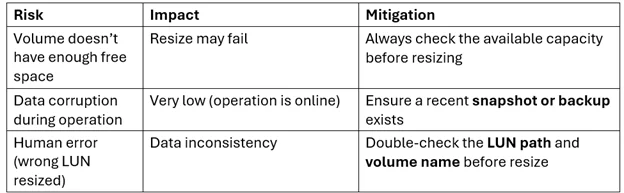
Note:
- No downtime is expected, ONTAP LUN resize is an online operation.
- Data loss is not possible since resizing only adds capacity.
- Still, perform the maintenance during a scheduled window for safety.
Rollback Plan
If something goes wrong after resizing:
- SQL workloads will continue running on existing data since resizing is additive.
- ONTAP Snapshot Restore:
You can revert to the last snapshot if any data issue is found.
|
1 |
volume snapshot restore -vserver CLR1SVM02 -volume CLR1SVM02 -snapshot pre_resize_backup |
3. Database Backup:
Restore from your latest SQL backup if snapshots are unavailable.
Note: Shrinking a LUN is not supported. The only rollback option is to restore from a snapshot or backup.
Best Practices
To ensure a reliable and safe LUN management process:
- Monitor volume utilization regularly using ONTAP CLI or AWS Console.
- Always take a snapshot before resizing.
- Avoid over-allocating unused storage.
- Document every resize activity, including the date, old size, new size, and reason.
- Use CloudWatch metrics to set alerts for FSx volume capacity thresholds.
Conclusion
Resizing an FSx for ONTAP LUN and extending a Windows partition are straightforward and risk-free operations when done carefully.
With the right steps, including verifying volume capacity, resizing the LUN, rescanning disks, and extending the partition, you can easily scale your storage on the fly.
Drop a query if you have any questions regarding Amazon Fsx and we will get back to you quickly.
Empowering organizations to become ‘data driven’ enterprises with our Cloud experts.
- Reduced infrastructure costs
- Timely data-driven decisions
About CloudThat
FAQs
1. Can I shrink a LUN after resizing it?
ANS: – No, shrinking an FSx ONTAP LUN is not supported. Once you increase the size, the only way to revert is by restoring a snapshot or backup created before the resize.
2. Does resizing a LUN cause downtime for SQL or application workloads?
ANS: – No, resizing is an online operation. Applications, including SQL Server, continue running normally during the resize and partition extension.
3. How can I verify if Windows detected the new LUN size?
ANS: – After resizing, you can run Update-HostStorageCache in PowerShell or open Disk Management → Action → Rescan Disks. The additional space will appear as unallocated, ready to extend the volume.


WRITTEN BY Shaikh Mohammed Fariyaj Najam
Mohammed Fariyaj Shakh is a Sr. Research Associate – Cloud Engineer at CloudThat with a strong background in AWS and Azure infrastructure management, security, optimization, and automation. Certified in both AWS and Azure, he has hands-on experience in designing, implementing, and managing highly reliable, secure, and scalable cloud solutions. Well-versed in DevOps practices and tools such as Git, GitHub, AWS CI/CD, Jenkins, Docker, Kubernetes, and Terraform, Fariyaj leverages his expertise in automation, Infrastructure as Code (IaC), and container orchestration to build and manage robust deployment pipelines. Known for his strong troubleshooting skills, he delivers effective and scalable solutions to complex cloud challenges.


 PREV
PREV





Comments