

 Login
Login


 March 25, 2026
|
Voiced by Amazon Polly |
Filesystems and disk partitioning form the foundation of every operating system, from developer laptops to enterprise servers and GPU-powered AI platforms. While filesystems define how data is stored and protected, partitioning defines where that data lives. Together, they influence performance, reliability, scalability, and recovery.
This blog explores filesystems and partitioning from a practical infrastructure perspective and includes real Windows and Linux partitioning workflows using PowerShell and Linux commands, along with real-world use cases, including a detailed NVIDIA system scenario.
Start Learning In-Demand Tech Skills with Expert-Led Training
- Industry-Authorized Curriculum
- Expert-led Training
Understanding Disk Partitioning
Disk partitioning divides a physical storage device into logical sections. Each partition can host a different filesystem and serve a specific function, such as operating system files, application data, logs, or high-performance datasets.
Modern systems use GPT (GUID Partition Table) with UEFI firmware, enabling large disks, faster boot times, and better fault tolerance. Legacy systems using MBR are limited in size and flexibility and are rarely recommended today.
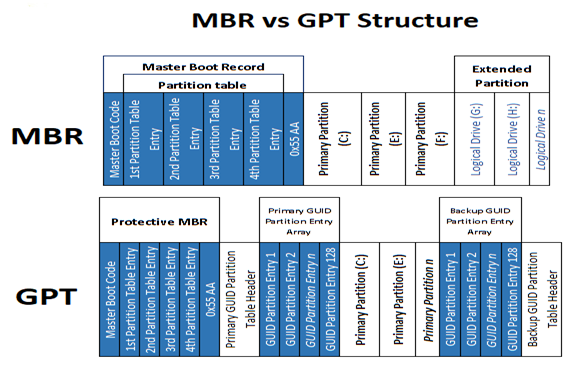
Fig 1: MBR vs GPT Structure
Filesystems in Context
A filesystem defines how files are organized, secured, and accessed within a partition. Common examples include FAT, NTFS, ext4, and XFS. The choice of filesystem affects journaling behavior, performance, security controls, and crash recovery.
Journaling filesystems such as NTFS, ext4, and XFS record changes before committing them, allowing systems to recover quickly after power failures or crashes. Non-journaling filesystems like FAT32 are simple but risky for production workloads.
Windows Disk Partitioning (PowerShell-Based Approach)
In Windows environments, partitioning is commonly performed using PowerShell, especially in server, cloud, and automated deployments. Windows represents partitions using drive letters such as C: and D:
Before creating partitions, administrators must identify available disks and confirm that the correct disk is selected to avoid data loss.
To list all disks connected to the system:
Get-Disk
A new disk must be initialized before use. Modern Windows systems typically initialize disks using GPT:
Initialize-Disk -Number 1 -PartitionStyle GPT
Once initialized, a partition can be created using the available space:
New-Partition -DiskNumber 1 -UseMaximumSize -DriveLetter D
Finally, the partition must be formatted with a filesystem such as NTFS:
Format-Volume -DriveLetter D -FileSystem NTFS
This process creates a fully usable data volume. In enterprise environments, separating the OS partition from data partitions helps ensure system stability when application data unexpectedly grows.
Linux Disk Partitioning (Ubuntu / Enterprise Linux)
Linux follows a different philosophy. Instead of drive letters, partitions are mounted into a single directory tree starting at /. This design allows greater flexibility but requires careful planning.
Before partitioning, administrators identify disks and existing partitions:
Disk Partitioning Using parted
Before creating a filesystem, the disk must be partitioned. Linux provides multiple tools for this purpose:
- fdisk – Basic command-line tool, supports only MBR.
- parted – Modern command-line tool supporting both MBR and GPT.
- gparted – Graphical interface for parted, often used as a visual alternative.
- gdisk – GPT-focused partitioning tool.
For the examples below, parted is used due to its flexibility and GPT support.
Listing Existing Partitions
Before making any changes, identify the disk and its current partition layout.
sudo parted -l
This command lists all connected disks and helps confirm the correct device name (for example, /dev/sdb).
Launching Interactive Mode
Start parted in interactive mode:
sudo parted
This opens the parted shell for managing disk partitions.
Selecting the Disk
Choose the disk you want to modify:
select /dev/sdb
Ensure the correct disk is selected to avoid accidental data loss.
Viewing the Partition Table
Display the existing partition layout:
(parted) print
This output shows disk size, partition table type, and current partitions, including their start and end points.
Creating a Partition
Create a new primary partition:
mkpart primary ext4 1MB 5000MB
This creates an ext4-formatted primary partition from 1MB to 5000MB.
Resizing a Partition
Resize an existing partition:
resizepart 1 8000MB
This extends partition 1 to the 8000MB mark. The filesystem may need to be resized separately.
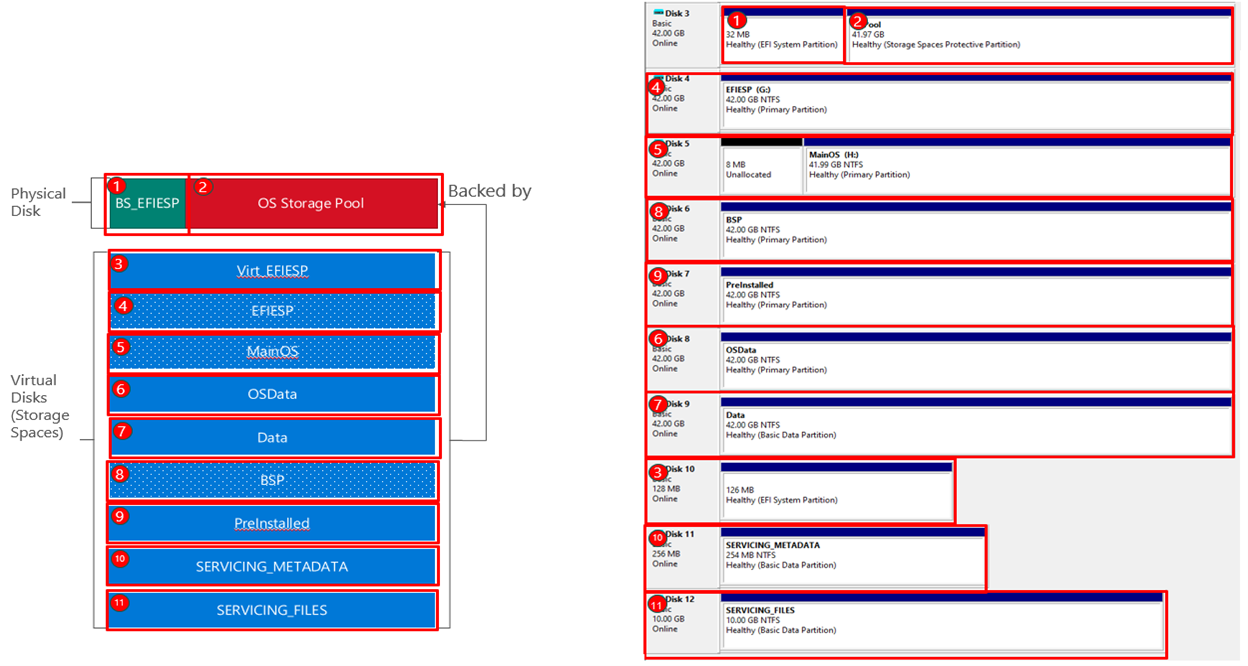
Fig 2: Partition Layout
Advanced Linux Partitioning with LVM
In enterprise Linux environments, Logical Volume Manager (LVM) is widely used instead of traditional fixed partitions. LVM allows administrators to resize storage dynamically, combine multiple disks, and take snapshots without downtime.
This flexibility is especially important for workloads that grow unpredictably, such as logs, databases, or AI training datasets.
Real-World Use Cases
Use Case 1: Windows Server for Business Applications
Separating OS and application data using NTFS partitions prevents application growth from affecting system stability. PowerShell-based automation ensures consistent deployments across environments.
Use Case 2: Linux Web Server with Isolated Log Storage
Mounting /var on a separate partition prevents excessive log generation from filling the root filesystem, reducing outage risk.
Use Case 3: Database Server with High I/O Demand
Using XFS on a dedicated partition improves performance for large files and concurrent I/O operations, common in database workloads.
Use Case 4: Virtualization and Cloud Hosts
Partitioning strategies that isolate virtual machine disks from the host OS simplify backups and improve recovery during host-level failures.
Use Case 5: NVIDIA GPU System for AI and HPC Workloads (Detailed)
NVIDIA GPU-based systems used for AI training and inference rely heavily on efficient storage design. Large datasets must be streamed continuously to GPUs, and model checkpoints are written frequently during training.
In such systems:
- The OS resides on a stable ext4 or NTFS partition
- High-throughput data partitions use XFS for large datasets
- Logs and checkpoints are isolated to avoid I/O contention
Poor partitioning or filesystem choices can leave expensive GPUs idle while waiting for data. Proper separation of OS, datasets, and checkpoints ensures consistent throughput, faster training cycles, and predictable recovery after failures, making storage design a critical factor in the efficiency of GPU infrastructure.
Designing Reliable Storage
Filesystems and disk partitioning are not just installation-time decisions; they shape the long-term reliability and performance of systems. From Windows servers to Linux clusters and NVIDIA-powered AI platforms, thoughtful partitioning and filesystem choices reduce downtime, improve scalability, and protect critical workloads.
Understanding both Windows PowerShell-based partitioning and Linux command-line workflows equips infrastructure professionals to design resilient systems that perform well under real-world demands.
Upskill Your Teams with Enterprise-Ready Tech Training Programs
- Team-wide Customizable Programs
- Measurable Business Outcomes
About CloudThat


WRITTEN BY Naveen H
Dr.Naveen H is a Vertical Head Azure Infra/Arch at CloudThat, specializing in Azure and PowerShell training. With 15 years of experience in training, academics and research, he have trained over 2000+ professionals/students to upskill in Azure Administrator, Azure Network, PowerShell, Windows server and Azure security courses. Known for simplifying complex concepts, and hands-on training, he brings deep technical knowledge and practical application into every learning experience. He was recognised as Top 100 MCT Awards by Microsoft in year 2024. Naveen's passion for technology and reading novel reflects in his unique approach to learning and development.


 PREV
PREV









Comments