

 Login
Login


 August 25, 2026
|
Voiced by Amazon Polly |
Introduction
Azure DevOps uses an inherited-process model to define how teams track work in Azure Boards. Organization Process settings control work item types, fields, forms, workflows, and backlog structure for projects using a process. It provides a consistent structure, so teams capture the right information and follow a predictable workflow.
This guide covers Organization Settings -> Boards -> Process, including system processes, Fields, inherited processes, work item configuration, layout, states, rules, and applying changes to projects.
Pioneers in Cloud Consulting & Migration Services
- Reduced infrastructural costs
- Accelerated application deployment
Organization Settings
Go to Organization Settings -> Boards -> Process. Administrators manage the system and inherited processes here. System processes are locked, so inheritance provides the supported way to customize process behavior.
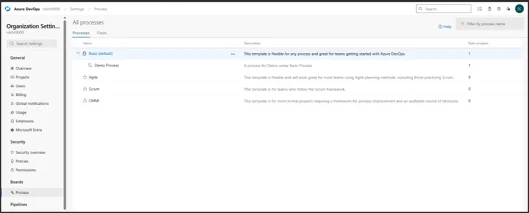
Under “All Processes”, the page contains Processes and Fields. Processes define the work-tracking model; Fields define information captured by work items and forms. This separation helps administrators understand whether they are selecting a complete process model or reviewing reusable data fields.
a. Processes
A process is the reusable work-tracking definition used by Azure Boards. The four system processes are locked, teams customize them through an Inherited Process and supported settings.
- Basic: Lightweight tracking using Epic, Issue, and Task with a To Do, Doing, Done workflow.
- Agile: Supports user-story-based delivery with User Story, Bug, Task, Feature, and Epic work items.
- Scrum: Supports Scrum terminology with Product Backlog Item, Bug, Task, Feature, and Epic.
- CMMI: Supports formal project management with Requirements, Change Requests, Risks, Reviews, Tasks, Features, and Epics.
- Child Process Configurations:
Create an inherited process from Basic, Agile, Scrum, or CMMI, in Organization Settings à Boards à Process, open More actions (…), select Create inherited process, and enter a unique name and description.
Step (1): Choose the parent process: Select the system process that matches the team’s planning method.
Step (2): Create the process: Enter the process name and description, then create it.
Step (3): Customize the process by configuring Work Item Types, Backlog Levels, and Projects. Projects using the process receive their supported changes.
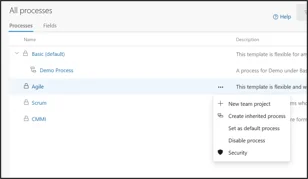
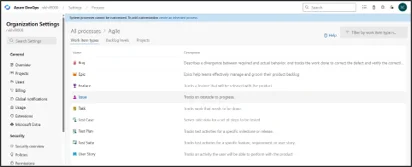
- System processes cannot be edited directly. To change project tracking, use an inherited process.
- An inherited process contains Work Item Types, Backlog Levels, and Projects. These define work types, backlog grouping, and project associations. A project association also determines which process changes become visible to that project after the process is updated.
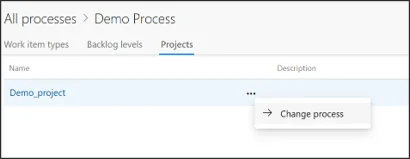
- Open the inherited process, select Projects, choose a project’s More actions (…) menu, and select Change process. Then review required fields, states, backlog definitions, and board mappings. Validate the project after the change by opening representative work items and checking boards and backlogs.
2. Work Item configurations:
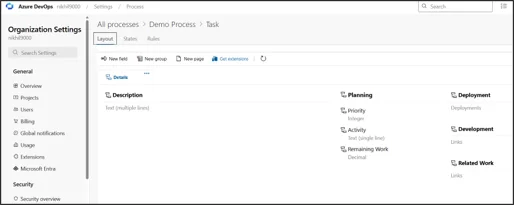
Each work item type (WIT) has three main customization areas: Layout, States, and Rules. A custom WIT can be added when the inherited process lacks a suitable business item.
- Layout: Controls the web form structure, fields, groups, pages, controls, and extensions visible to users. To create a custom WIT, select Work Item Types àNew work item type), enter its name and description, then customize fields, layout, workflow, rules, and backlog placement. When defining a custom WIT, give it a clear purpose and align it with the backlog level where users will manage it.
- Layout Configurations:
- New Field: Add an existing or custom field and configure its label, type, values, required or Default behavior, visibility, and position.
- New Group: Create a logical section that groups related fields, such as ownership, priority, or acceptance details.
- New Page: Add a dedicated page for related information. Custom pages can be reordered; the inherited Details page cannot. Use pages when a set of information warrants separate navigation, rather than making the main Details page too crowded.
- Get Extension & Refresh: Install the required Marketplace extension or control, position it in the layout, refresh the browser, then reopen the work item to validate it.
- Other layout actions include moving, hiding, showing, relabeling, or removing fields and moving custom groups or pages.
- Layout Configurations:
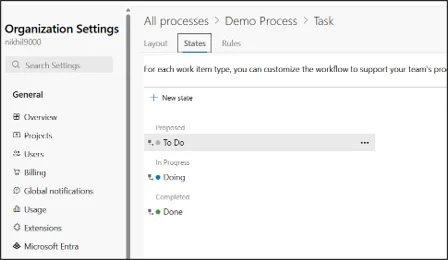
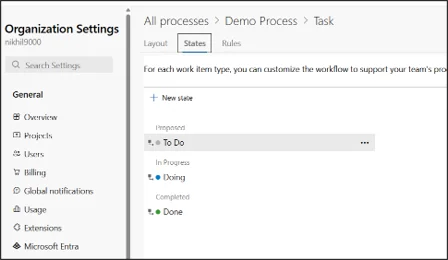
2. States: Defines workflow stages. Custom states map to workflow categories so boards and backlogs interpret them correctly. Use state names that are clear to the team and avoid unnecessary workflow stages that create extra maintenance.
-
- Stage Configurations:
- From the WIT’s States tab, select New State, enter a name, choose a category, and select a color. The category controls how Azure Boards interprets the state. State colors help users distinguish stages visually, but the category is the setting that provides the workflow meaning.
- State categories include Proposed, In Progress, Resolved, Completed, and Removed, representing new, active, addressed, finished, and excluded work.
- After changing states, review board column-to-state mappings. Unmapped states may not appear on the board.
- Keep workflows simple. Azure DevOps supports up to 32 workflow states per WIT, with states mapped to appropriate workflow categories.
- Stage Configurations:
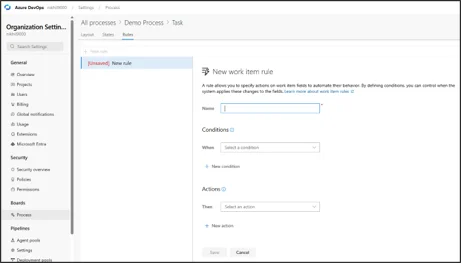
III. Rules: Adds conditional behavior. Rules can set defaults, require or lock fields, clear values, copy values, or react to field values and states.
-
- Select the Rules à New rule, name the rule, define conditions, and choose actions such as required, default, clear, read-only, or copy. Conditions should express the business situation that triggers the rule, while actions describe the behavior users should receive.
Example: when a work item enters testing, require QA Owner; when Resolution is selected, require a supporting explanation.
b. Fields:
Fields store work item data such as title, description, state, priority, estimates, ownership, and dates. Fields may be system, inherited, or custom.
Fields appear in forms, backlogs, boards, queries, rules, and reporting. Administrators can expose needed information, modify supported inherited-field properties, or add custom fields. Because the same field can appear in several work item types, careful field design reduces duplicate tracking and improves reporting consistency.
Common types include numbers, picklists, identity/person, rich text, dates, and Boolean values. Fields help teams capture, filter, report, validate, and automate consistent information.
Conclusion
Organization Settings > Boards > Process is the central place to govern Azure Boards work tracking. System processes provide the base; inherited processes support customization of fields, work item types, layouts, workflows, rules, backlogs, and projects.
Best practice: test an inherited process with a test project first. Verify forms, field behavior, states, rules, backlog levels, board mappings, and existing work items before production use. Keep a record of the intended configuration so later administrators can compare changes and troubleshoot unexpected behavior.
Drop a query if you have any questions regarding Azure DevOps, and we will get back to you quickly.
Empowering organizations to become ‘data driven’ enterprises with our Cloud experts.
- Reduced infrastructure costs
- Timely data-driven decisions
About CloudThat
FAQs
1. What happens to projects when I customize an inherited process?
ANS: – Projects using an inherited process receive its supported customizations automatically. Test changes before applying them broadly because multiple projects may use the same process.
2. Where can I use custom fields in Azure Boards?
ANS: – Custom fields can be added to supported work item types and shown on forms. They can also support queries, boards, rules, and reporting.


WRITTEN BY Nallagondla Nikhil
Nallagondla Nikhil works as a Research Associate at CloudThat. He is passionate about continuously expanding his skill set and knowledge by actively seeking opportunities to learn new skills. Nikhil regularly explores blogs and articles on various technologies and industry trends to stay up to date with the latest developments in the field.


 PREV
PREV






Comments