

 Login
Login


 June 19, 2026
|
Voiced by Amazon Polly |
Developers today spend a significant amount of time inside terminals- running builds, debugging applications, managing repositories, and working with automation scripts.
One example is GitHub Copilot CLI, which brings AI assistance directly into the terminal. A feature that many developers find particularly useful is slash commands.
These commands help reduce repetitive prompting and make terminal interactions more structured.
In this blog, we’ll look at how slash commands work, where they help in real projects, and a few practical observations from developer training sessions and enterprise environments.
Start Learning In-Demand Tech Skills with Expert-Led Training
- Industry-Authorized Curriculum
- Expert-led Training
What Are Slash Commands in GitHub Copilot CLI?
Slash commands are predefined commands that start with /.
For example: /help
This displays the available commands inside GitHub Copilot CLI.
Instead of typing:
“Please clear previous context and start a fresh conversation”
Developers can simply run: /clear
This may look small at first, but during long development sessions, it helps maintain cleaner, more predictable AI interactions.
Why Developers Are Using Slash Commands More Frequently
During GitHub Copilot workshops, one common observation is that developers often struggle with context management.
A session may start with:
- debugging an API issue,
- move into YAML pipeline fixes,
- then shift toward documentation or test generation.
Over time, the AI assistant accumulates a large amount of unrelated context. This can reduce output quality. Slash commands help developers control these situations more efficiently.
They are especially useful for:
- DevOps engineers working across repositories,
- developers switching between multiple services,
- platform teams managing automation scripts,
- trainers conducting live demos.
Useful Slash Commands for Daily Development
Using /clear to Reset AI Context
/clear
This command clears the current session context.
Without clearing context, older prompts sometimes influence newer responses.
Developers working across microservices or multiple repositories may also find this useful.
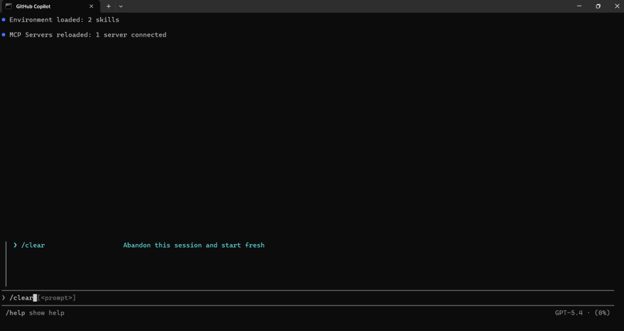
Fig 1: Screenshot of /clear command usage in the terminal.
Managing Repository Scope with /cwd
/cwd
Or switch directories:
/cwd inventory-service
GitHub Copilot CLI uses the working directory as part of its context.
In enterprise projects, developers often work with:
- backend services,
- infrastructure repositories,
- YAML pipelines,
- frontend applications
Changing the working directory helps the assistant stay focused on the correct codebase.
This is particularly useful in monorepo environments where unrelated files can otherwise confuse the AI assistant.
Switching Models with /model
/model
This command allows developers to switch between available AI models.
Different models may behave differently depending on the task:
- some provide faster responses,
- some generate cleaner documentation,
- others perform better for reasoning-heavy tasks.
During technical workshops, many developers prefer experimenting with multiple models while generating:
- infrastructure scripts,
- API documentation,
- unit tests,
- YAML pipelines.
The ability to switch models directly from the terminal saves time and reduces interruptions.
Controlling Access with /add-dir
/add-dir ./src
This command explicitly grants directory access.
From a governance perspective, this is one of the more important capabilities in GitHub Copilot CLI. Many organizations today are evaluating:
- Responsible AI practices,
- source code protection,
- repository-level access control,
- developer governance standards.
By limiting accessible directories, teams can maintain better control over what the AI assistant can reference. This is especially relevant in regulated environments or projects that contain sensitive configurations. Teams exploring intelligent developer workflows can further strengthen these capabilities by training on GitHub Copilot, which covers practical AI-assisted development strategies.
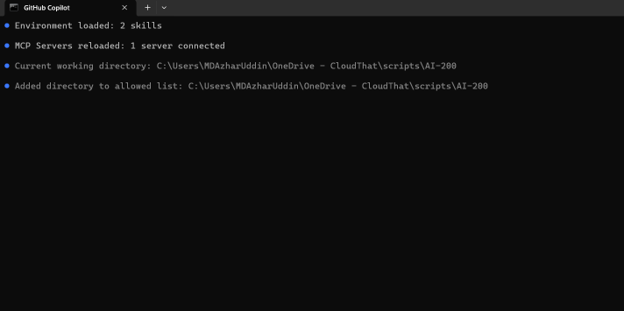
Fig 2: Screenshot showing /add-dir command with project folder access.
Automating Tasks with /delegate
/delegate Add JWT authentication middleware
This command demonstrates how AI tooling is gradually moving beyond simple chat interactions. Developers can use it to assist with:
- repetitive implementation tasks,
- boilerplate generation,
- small feature additions,
- documentation updates.
In practice, this works best when tasks are clearly scoped.
Smaller, well-defined requests usually produce more reliable results than large, multi-feature requests. Teams experimenting with AI-assisted development often use commands like this for:
- proof-of-concept work,
- internal tooling,
- sandbox environments,
- rapid prototyping.
Sharing Sessions with /share
/share file ./notes
This exports session content into shareable output formats.
This is useful for:
- documenting troubleshooting steps,
- sharing implementation discussions,
- maintaining audit trails,
- preparing training material.
Where Slash Commands Fit in Enterprise Workflows
Many developers initially view slash commands as convenience shortcuts. However, their value becomes clearer in larger engineering environments.
In enterprise projects, teams often deal with:
- multiple repositories,
- shared infrastructure,
- secure development practices,
- standardized workflows.
Commands such as:
- /clear
- /cwd
- /add-dir
help improve consistency while reducing unnecessary AI context pollution.
From a DevOps perspective, terminal-first AI workflows are becoming increasingly relevant because developers already perform many operational tasks inside terminals:
- Git operations,
- Kubernetes commands,
- CI/CD execution,
- deployment validation,
- scripting.
Bringing AI assistance directly into these workflows feels more natural than constantly switching between browser tabs and editors. Teams exploring GitHub Actions and DevOps automation workflows may also find these integrations useful alongside CI/CD practices.
Best Practices While Using GitHub Copilot CLI
Keep prompts focused.
Smaller requests generally yield cleaner results than large instructions that cover multiple objectives. Instead of:
“Create APIs, tests, documentation, and deployment YAML.”
Split tasks into smaller units.
Reset context regularly.
Long-running sessions can accumulate irrelevant history.
Using/clear
periodically helps maintain better response quality.
Review the generated code carefully.
AI-generated code still requires:
- security validation,
- performance review,
- dependency checks,
- architectural alignment.
This is especially important for production workloads.
Limit unnecessary directory access.
Use:
/add-dir
carefully to maintain governance and repository control.
Efficient AI Workflows
GitHub Copilot CLI slash commands provide developers with a more structured and efficient way to manage AI-assisted workflows directly from the terminal. Although these commands are simple, they address practical development challenges such as maintaining relevant context, switching between projects, controlling repository access, and reducing repetitive interactions. For teams working with DevOps workflows, automation scripts, GitHub repositories, cloud-native applications, and CI/CD pipelines, slash commands can improve productivity by making AI interactions more focused and manageable. As terminal-based development continues to evolve, features like slash commands are becoming an important part of modern engineering practices, helping developers collaborate with AI tools more effectively while maintaining control, security, and workflow consistency.
Upskill Your Teams with Enterprise-Ready Tech Training Programs
- Team-wide Customizable Programs
- Measurable Business Outcomes
About CloudThat


WRITTEN BY MD Azhar Uddin
Azhar is a Microsoft Certified Trainer (MCT) and multicloud expert with a Master’s degree in computer applications. With a proven track record of training over 10,000 professionals worldwide, he specializes in cloud, DevOps, and system administration- emphasizing scalable, secure and cost-effective solutions. He brings deep expertise in Azure, AWS and Oracle Cloud, skillfully integrating complex multicloud environments and designing modern cloud-native architectures using microservices and containers. Recognized among the Top 100 MCTs globally acclaimed for delivering real-world, high-impact training in Microsoft Data & AI and cloud technologies.


 PREV
PREV






Comments