

 Login
Login


 December 2, 2025
|
Voiced by Amazon Polly |
Overview
In today’s cloud-driven landscape, data is one of the most valuable assets for any business. Ensuring its safety, availability, and recoverability is essential for maintaining seamless operations and meeting compliance requirements. AWS Backup offers a fully managed, centralized backup solution that enables organizations to automate and standardize data protection across AWS services. With features such as backup plans, lifecycle rules, cross-region, and cross-account backups, AWS Backup makes it easier than ever to ensure business continuity without complex manual processes.
Pioneers in Cloud Consulting & Migration Services
- Reduced infrastructural costs
- Accelerated application deployment
Introduction
AWS Backup is a powerful and user-friendly service designed to simplify the protection of cloud workloads for businesses.
In this blog, we will walk through the complete process of setting up automated backups using AWS Backup. You’ll learn how to create a backup vault, define backup plans, assign AWS resources, and monitor your backups effectively. Whether you’re setting up backups for the first time or looking to streamline an existing strategy, this guide gives you a clear and practical approach to protecting your AWS environment.
Step-by-Step Guide
Step 1: Open AWS Backup Console
- Go to AWS Console
- Search for AWS Backup
- Select your region (important, backups stay in the selected region unless cross-region is enabled)
You will land on the AWS Backup dashboard.
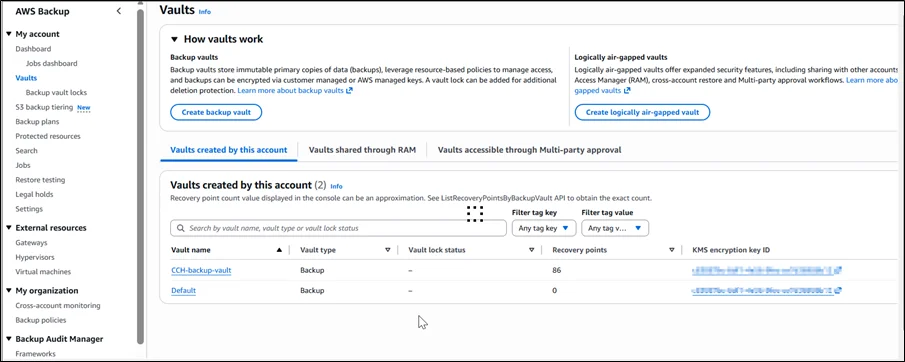
Step 2: Create a Backup Vault
A Backup Vault stores all your recovery points. It provides encryption and access control using AWS KMS.
Steps:
- From the left menu → Click Backup Vaults
- Click Create Backup Vault
- Enter:
- Vault Name (example: app-backup-vault)
- Choose an encryption key:
- Default AWS Backup key
- OR a custom AWS KMS key for more control
- Click Create Backup Vault
Your vault is ready.
Step 3: Create a Backup Plan
A Backup Plan defines:
- Backup schedule
- Retention period
- Lifecycle policies
- Cold storage settings
Steps:
- Go to Backup Plans
- Click Create Backup Plan
You have three options:
- Start from scratch
- Build from the existing plan
- Use JSON template
Choose Start from scratch.
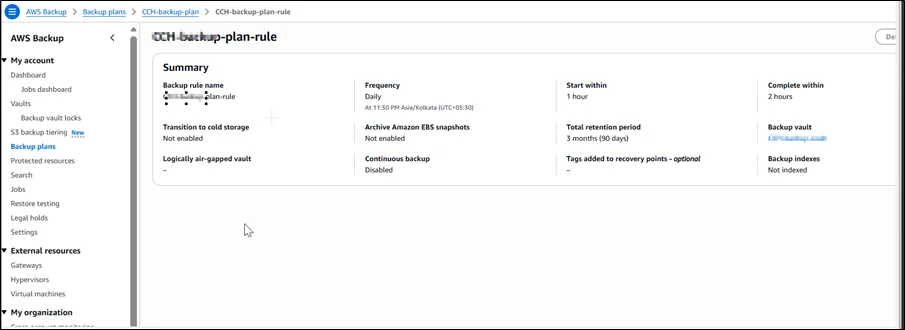
Add Backup Rule:
A rule defines when and how backups occur.
- Enter Plan Name (e.g., daily-backup-plan)
- Under Backup Rules, click Add Backup Rule
- Enter:
- Rule Name
- Backup Vault (select the one you created)
- Set backup frequency:
- Daily
- Weekly
- Monthly
- Custom cron schedule
Set Retention:
Choose how long you want to keep backups:
- 7 days
- 30 days
- 90 days
- 1 year
Custom (based on compliance needs)
- Click Create Plan.
- Your backup plan is ready.
Step 4: Assign Resources to the Backup Plan
You must now define which resources will be backed up.
Steps:
- Under Backup Plans → Click your newly created plan
- Click Assign Resources
- Provide:
- Assignment Name
- AWS IAM role (use the default AWS Backup Role or create a custom)
Step 5: Monitor Backup Jobs
Go to:
Backup Jobs → Jobs
Here you can view:
- Job status (Completed / Failed / Running)
- Resource backed up
- Backup size
- Vault used
- Start and end time
If a job fails, click on the job to view detailed logs.

Step 6: Restoring a Backup (Recovery)
When needed, restoring is simple.
Steps:
- Go to Protected Resources
- Click resource
- Select Recovery Points
- Choose any point in time
- Click Restore
- Configure restoration settings (e.g., Amazon EC2 instance type, Amazon VPC, etc.).
AWS Backup creates a new resource from the restore.
Conclusion
AWS Backup is a powerful, centralized service for automating backups across AWS workloads. From daily Amazon EC2 backups to managed Amazon RDS snapshots and Amazon S3 protection, AWS Backup simplifies the entire backup lifecycle. By following the steps in this guide, creating a backup vault, defining a backup plan, assigning resources, and monitoring jobs, you can ensure your cloud infrastructure is resilient, compliant, and secure.
A proper backup strategy isn’t just a best practice, it’s essential for protecting your applications against data loss, corruption, or accidental deletion. With AWS Backup, you can set up reliable, automated backups in just a few clicks.
Drop a query if you have any questions regarding AWS Backup and we will get back to you quickly.
Empowering organizations to become ‘data driven’ enterprises with our Cloud experts.
- Reduced infrastructure costs
- Timely data-driven decisions
About CloudThat
FAQs
1. What is AWS Backup?
ANS: – AWS Backup is a managed service that automates backups across AWS resources from a single console. It helps ensure data protection, compliance, and easy recovery.
2. Which services does AWS Backup support?
ANS: – It supports Amazon EC2, Amazon EBS, Amazon RDS, Amazon DynamoDB, Amazon EFS, Amazon FSx, Amazon S3, and more. This allows centralized backup management for multiple AWS workloads.
3. Can I create cross-region or cross-account backups?
ANS: – Yes, AWS Backup lets you copy backups to other Regions or accounts. This is useful for disaster recovery and regulatory compliance.


WRITTEN BY Ravi Kose
Ravi Kose works as a Senior Research Associate at CloudThat. He is a skilled cloud and infrastructure professional with a strong focus on managing infrastructure, security, and cloud migration projects. Ravi has hands-on experience designing secure, scalable, and efficient cloud architectures. With a solid understanding of cloud best practices and tools, he ensures smooth and secure transitions during cloud adoption and modernization initiatives. In his free time, he enjoys exploring emerging cloud technologies and deepening his expertise in DevOps and security practices.


 PREV
PREV











Comments