

 Login
Login

 September 24, 2026
|
Voiced by Amazon Polly |
Cloud Sync and Microsoft Entra Connect both help synchronize on-premises Active Directory with Microsoft Entra ID, but they work differently and suit different requirements. According to the Microsoft decision guide, Cloud Sync is the preferred approach for hybrid identity synchronization. Entra Connect still supports scenarios that Cloud Sync does not. So, which one should you choose for your organization? This guide compares both options to help you decide whether Cloud Sync or Entra Connect is the better fit for your environment.
In simple terms:
- Microsoft Entra Cloud Sync uses a lightweight provisioning agent and manages synchronization configuration from the cloud.
- Microsoft Entra Connect Sync uses an on-premises synchronization engine and database.
- Both can synchronize users, groups, and contacts between Active Directory and Microsoft Entra ID.
- Microsoft recommends evaluating Cloud Sync for new hybrid identity deployments and migration scenarios.
Start Learning In-Demand Tech Skills with Expert-Led Training
- Industry-Authorized Curriculum
- Expert-led Training
How does Microsoft Entra Cloud Sync work?
Microsoft Entra Cloud Sync moves much of the synchronization management into Microsoft Entra ID while using an on-premises provisioning agent to communicate with Active Directory. Microsoft documents Cloud Sync as a cloud-managed synchronization service for users, groups, and contacts.
The basic flow of Cloud Sync is as shown below:
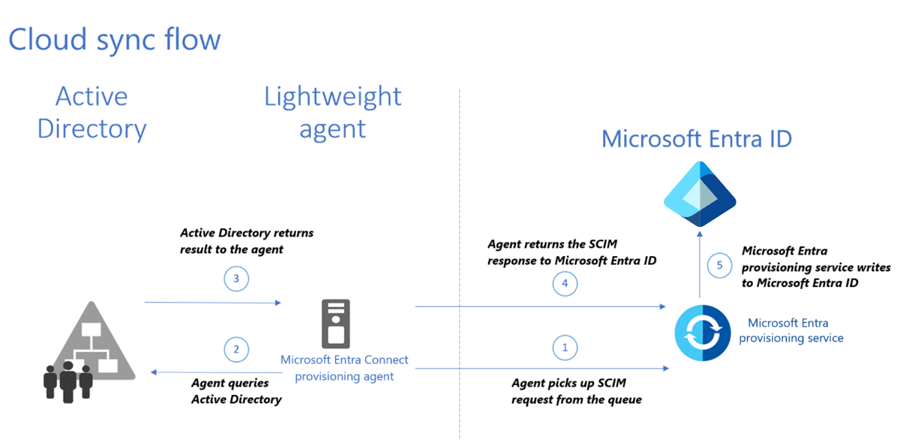
Fig 1: Cloud Sync Synchronization flow
The process includes these main components:
- Active Directory stores the organization’s on-premises identities.
- Microsoft Entra provisioning agent runs inside the on-premises environment.
- The agent communicates with the Microsoft Entra cloud service.
- Microsoft Entra processes synchronization rules and attribute mappings.
- The service provisions identity information into Microsoft Entra ID.
Microsoft states that Cloud Sync stores and manages synchronization configuration in Microsoft Entra ID. Administrators can therefore manage configuration and monitoring from the Microsoft Entra admin center instead of maintaining the complete synchronization configuration locally.
What does the Cloud Sync architecture provide?
Microsoft Entra Cloud Sync uses a more cloud-managed architecture than traditional Microsoft Entra Connect Sync. The differences are particularly relevant when organizations need simpler management, higher availability, or synchronization across complex Active Directory environments.
Cloud Sync provides several architectural differences compared with traditional Connect Sync:
- Cloud-managed configuration
- Lightweight provisioning agents
- Multiple active agents for availability
- Support for disconnected forests
- Cloud-to-Active Directory provisioning scenarios
Microsoft specifically documents disconnected-forest synchronization as a Cloud Sync capability. This can help organizations with separate Active Directory forests following mergers, acquisitions, or other organizational changes.
How does Microsoft Entra Connect Sync work?
Microsoft Entra Connect Sync runs its synchronization engine inside the organization’s on-premises environment. Microsoft describes it as a main component of Microsoft Entra Connect that synchronizes identity data between on-premises directories and Microsoft Entra ID.
The simplified architecture is shown below:
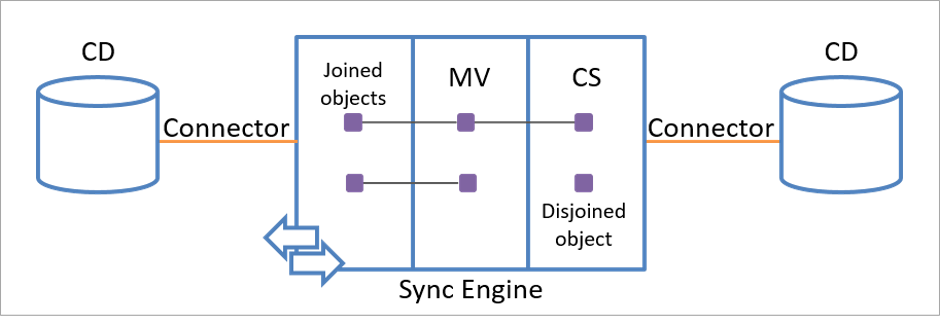
Fig 2: Microsoft Entra Connect Architecture
The important components include:
- Connector: Connects the synchronization engine to a directory or data source.
- Connector space: A temporary storage area in Microsoft Entra Connect that stores a copy of identity information from each connected directory.
- Metaverse: Provides an integrated view of identity information from connected sources. The metaverse in Microsoft Entra Connect is a central place where identity information from different connected directories comes together. It creates a unified view of each user or group, helping Entra Connect decide which information to synchronize to Microsoft Entra ID.
- Synchronization rules: Determine how attributes are moved and transformed between systems.
For example, suppose an employee has this Active Directory information:
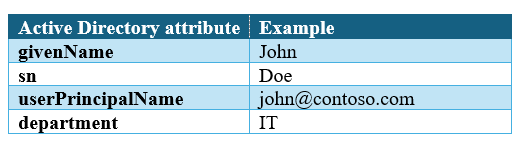
Connect Sync can process these attributes through its synchronization rules and provision the corresponding identity information into Microsoft Entra ID. Microsoft documents this processing model as declarative provisioning, a rule-based process in Microsoft Entra Connect that determines how identity data should be created, updated, or synchronized between Active Directory and Microsoft Entra ID.
What is the difference between Azure Cloud Sync and Entra Connect?
Microsoft Entra Cloud Sync and Microsoft Entra Connect Sync can both synchronize identities, but their architectures and management models differ. Microsoft currently positions Cloud Sync as the strategic direction for synchronization and continues to maintain a feature comparison for organizations evaluating migration.
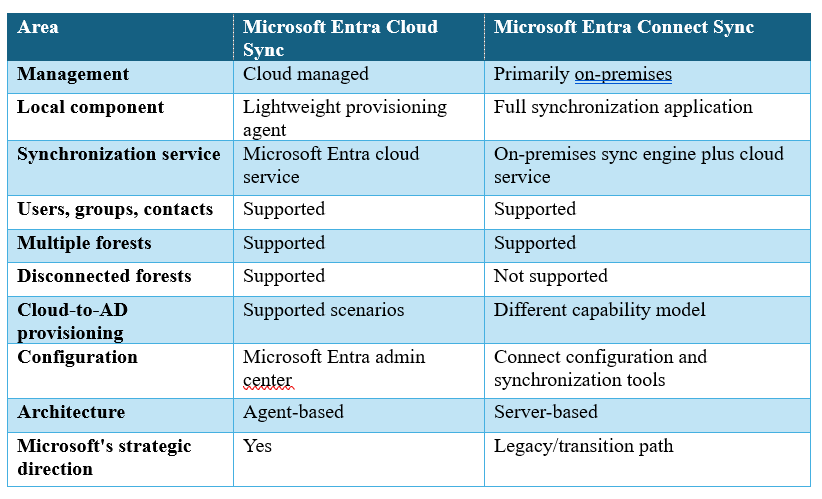
Microsoft documents support for disconnected forests in Cloud Sync and states that new synchronization and provisioning capabilities focus primarily on the Cloud Sync platform.
When should you choose Microsoft Entra Cloud Sync?
Choose Microsoft Entra Cloud Sync when your environment fits its supported scenarios, and you want a cloud-managed synchronization architecture. Microsoft specifically identifies multi-forest, disconnected-forest, simplified-management, and cloud-first-identity scenarios as important Cloud Sync use cases.
Choose Microsoft Entra Cloud Sync when your organization has the following requirements:
- Presence of multiple disconnected forests.
Cloud Sync supports synchronization across disconnected Active Directory forests, enabling organizations to share identity information across separate environments. - Need cloud-managed synchronization.
Administrators can manage synchronization configuration directly from Microsoft Entra ID instead of maintaining the complete configuration on a local synchronization server. - Preference is a lightweight architecture.
Cloud Sync uses the Microsoft Entra provisioning agent instead of the full Microsoft Entra Connect application, reducing local infrastructure requirements and simplifying deployment. - Needed higher availability.
Organizations can deploy multiple provisioning agents to maintain synchronization if one agent stops operating. - Need to use the latest synchronization capabilities.
Microsoft’s guidance indicates that organizations evaluating new hybrid identity deployments should consider Cloud Sync first.
When should you choose Microsoft Entra Connect Sync?
Microsoft Entra Connect Sync is the better option when your organization relies on synchronization capabilities that Cloud Sync does not currently support. Before migrating, verify feature compatibility with your existing deployment.
Choose Microsoft Entra Connect Sync in the following scenarios:
- Existing deployment uses a feature that Cloud Sync does not support.
- Synchronization design requires Connect Sync-specific functionality.
- Your team must validate custom synchronization rules for compatibility before migration.
- The organization has not yet completed its Cloud Sync readiness assessment.
Microsoft’s migration FAQ states that organizations do not need to migrate until the features they depend on become supported in Cloud Sync.
This makes feature compatibility the most important decision point.
Do not choose Cloud Sync simply because Microsoft recommends it as the strategic direction. First, compare your existing synchronization configuration with Microsoft’s current feature comparison.
How do you install Microsoft Entra Cloud Sync?
You install Cloud Sync by deploying the Microsoft Entra provisioning agent in your on-premises environment and configuring Cloud Sync from the Microsoft Entra admin center. Microsoft documents the installation process through the Microsoft Entra installation guide.
The basic process is:
- Sign in to the Microsoft Entra admin center with at least the Hybrid Identity Administrator role.
- Open Entra ID > Entra Connect > Cloud Sync.
- Open the Agent section.
- Download the on-premises provisioning agent.
- Install the provisioning agent on a supported server.
- Sign in during the agent configuration process.
- Configure the Active Directory connection.
- Configure synchronization scope and attribute mappings.
- Validate synchronization.
- Monitor the synchronization status from Microsoft Entra ID.
Start with a controlled synchronization scope before expanding synchronization to the entire directory.
What should you check before migrating from Entra Connect to Cloud Sync?
Before migration, check your current synchronization features against Microsoft’s Cloud Sync support matrix. Microsoft states that the migration process transfers supported configurations, but administrators should validate the resulting configuration before production synchronization. You may also refer to the feature comparison guide before deciding whether to migrate from Entra Connect to Cloud Sync.
A practical checklist includes:
- Forest topology: Check whether your forests meet Cloud Sync topology requirements.
- Synchronization rules: Identify custom rules.
- Attribute mappings: Document customized mappings.
- Group scope: Check whether your groups meet Cloud Sync requirements.
- Authentication: Document whether you use Password Hash Synchronization, Pass-through Authentication, or federation.
- Writeback: This means sending selected information from Microsoft Entra ID back to on-premises Active Directory.
- Applications: Identify applications that depend on synchronized identities.
- Pilot users: Select a controlled group for validation.
- Rollback: Document how you will restore the previous synchronization configuration if validation fails.
Microsoft’s current Cloud Sync FAQ also documents specific limitations, including limitations around nested groups when administrators use security-group scoping.
Choose Your Sync Strategy
Microsoft Entra Cloud Sync and Entra Connect Sync both synchronize identities between on-premises Active Directory and Microsoft Entra ID, but they use different approaches. Cloud Sync provides a simpler, lightweight, and cloud-managed solution and is Microsoft’s preferred option for supported scenarios.
However, organizations should check their current requirements before moving to Cloud Sync. They should review their synchronization rules, authentication methods, writeback requirements, and other features to ensure Cloud Sync supports them.
For new deployments, Cloud Sync can be considered first. For existing Entra Connect environments, organizations should complete a feature check and test the migration before making changes to production. The right choice depends on the organization’s requirements and existing identity setup.
Upskill Your Teams with Enterprise-Ready Tech Training Programs
- Team-wide Customizable Programs
- Measurable Business Outcomes
About CloudThat
FAQs
1. Is Microsoft Entra Cloud Sync replacing Entra Connect?
ANS: – Microsoft positions Cloud Sync as its preferred synchronization platform for supported hybrid identity scenarios. Organizations should continue using Entra Connect when they require features that Cloud Sync does not support.
2. Can Cloud Sync support pass-through authentication?
ANS: – No, Microsoft Entra Cloud Sync does not support Pass-through Authentication (PTA).
Cloud Sync primarily uses Password Hash Synchronization (PHS) for hybrid identity scenarios. If PTA is a requirement, Microsoft Entra Connect Sync should be used instead.
3. Can Cloud Sync synchronize users and groups?
ANS: – Yes. Cloud Sync can synchronize users and groups from on-premises Active Directory to Microsoft Entra ID.
4. Does Cloud Sync require Microsoft Entra Connect?
ANS: – No. Cloud Sync uses the Microsoft Entra provisioning agent instead of the Entra Connect application.
5. Can Cloud Sync support multiple Active Directory forests?
ANS: – Yes. Cloud Sync supports multiple Active Directory forests, including some disconnected-forest scenarios.


WRITTEN BY Atul Choudhary
Atul Choudhary is a Subject Matter Expert at CloudThat and a Microsoft Certified Trainer with over 15 years of IT industry experience. Specializing in Azure and Hybrid Cloud solutions, he holds multiple certifications including AZ-104, AZ-305, AZ-700, and AZ-800. Atul is known for delivering hands-on, scenario-driven training that bridges the gap between theory and real-world application. At CloudThat, he empowers professionals and organizations to upskill, modernize infrastructure, and accelerate cloud adoption. He is also a certified International Engineering Educator through IUCEE, committed to advancing global technical education.


 PREV
PREV





Comments