

 Login
Login


 June 1, 2026
|
Voiced by Amazon Polly |
Modern developers spend a significant amount of time in the terminal: cloning repositories, running builds, managing dependencies, debugging issues, and automating workflows. While IDEs have benefited from AI-powered coding assistants for some time, the terminal has remained a manual, syntax-heavy environment. GitHub Copilot CLI changes this by introducing AI assistance directly into the command line, enabling developers to work faster without breaking their flow.
Start Learning In-Demand Tech Skills with Expert-Led Training
- Industry-Authorized Curriculum
- Expert-led Training
What Is GitHub Copilot CLI?
GitHub Copilot CLI is an AI-powered command-line tool that brings GitHub Copilot’s capabilities directly into your terminal. Instead of memorizing complex shell syntax or searching documentation, developers can describe their intent in natural language, and Copilot CLI translates it into actionable commands, scripts, or code changes.
Unlike traditional chat-based AI tools, Copilot CLI is execution-focused. It understands your current directory, repository context, and Git state, and it can read, write, and run files (with your permission). This makes it especially suited for automation, refactoring, debugging, and operational workflows that happen primarily in the terminal.
Key capabilities include:
- Natural language interaction with the terminal
- Context-aware understanding of repositories and files
- Safe execution with explicit user approval
- Interactive and one-shot (programmatic) usage modes
- Native integration with GitHub issues, pull requests, and workflows
Prerequisites for Using GitHub Copilot CLI
Before setting up Copilot CLI, ensure you have the following:
- A GitHub Copilot subscription (Free, Pro, Business, or Enterprise)
- Node.js v22+ and npm v10+ (if using npm)
- Organizational permission enabled (for Business/Enterprise users)
How to Set Up GitHub Copilot CLI
Step 1: Install Copilot CLI
GitHub Copilot CLI can be installed using multiple methods. The most common options are:
- Using npm (all platforms):
npm install -g @github/copilot
- Using Homebrew (macOS/Linux):
brew install copilot-cli
- Using WinGet (Windows):
winget install GitHub.Copilot
- GitHub also provides an install script for macOS and Linux:
curl -fsSL https://gh.io/copilot-install | bash
These methods install the Copilot binary and make it available globally in your terminal.
Step 2: Authenticate with GitHub
Once installed, navigate to any project directory and run:
- copilot
If this is your first time, authenticate using:s
- /login
This links the CLI to your GitHub account and enables access to Copilot features. You will also be prompted to grant folder permissions so Copilot can read and modify files in the project.
How to Use GitHub Copilot CLI
GitHub Copilot CLI is designed to be used directly from the terminal, allowing developers to interact with their system using natural language. Once you launch Copilot CLI, you can describe what you want to achieve instead of recalling exact command syntax. Copilot understands the intent, asks clarifying questions when required, and generates the appropriate commands, always requesting approval before execution.
- Interactive Mode
Interactive mode is the most common way to use GitHub Copilot CLI. It enables a conversational workflow in which Copilot gathers context, confirms defaults, and performs multi-step tasks safely.
For example, consider the following prompt entered into the terminal:
|
1 |
<strong>create a windows server 2022 vm in my-rg</strong> |
Instead of immediately running a command, Copilot CLI:
- Asks whether you want to use sensible defaults or customize the VM settings
- Confirms the resource group, VM size, and naming choices
- Securely generates a strong administrator password locally
- Outputs the final Azure CLI command required to create the virtual machine
The screenshot below shows GitHub Copilot CLI handling this entire workflow interactively, from intent to execution-ready command, without requiring the user to manually construct a complex Azure CLI statement.
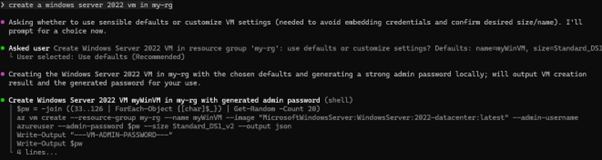
Fig 1: Prompt entered the terminal.
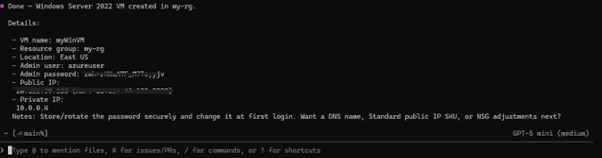
Fig 2: Result.
- One-Shot (Programmatic) Mode
You can run a single prompt without entering a session:
|
1 |
copilot -p "Create a bash script to clean build artifacts" |
This mode is particularly useful for scripting, automation, and CI/CD scenarios
Why GitHub Copilot CLI Matters
GitHub Copilot CLI represents a shift from AI as a suggestion tool to AI as an execution partner. By embedding intelligence directly into the terminal, it reduces friction between intent and action, minimizes context switching, and makes advanced workflows accessible through natural language.
For developers who live in the command line, especially those working in DevOps, backend development, or large codebases, Copilot CLI can become an indispensable productivity multiplier.
Accelerating Terminal Productivity
GitHub Copilot CLI brings AI-powered assistance to one of the most critical developer environments: the terminal. With simple setup, flexible usage modes, and powerful real-world applications, it bridges the gap between human intent and machine execution. Whether you’re learning new commands, automating repetitive tasks, or managing complex repositories, Copilot CLI helps you move faster, without leaving your workflow.
Upskill Your Teams with Enterprise-Ready Tech Training Programs
- Team-wide Customizable Programs
- Measurable Business Outcomes
About CloudThat


WRITTEN BY Mariyam Thomas
Mariyam Thomas is a Subject Matter Expert and Microsoft Certified Trainer at CloudThat, with a strong focus on Microsoft Azure and Hybrid Infrastructure. With over 10 years of experience in training and academics, she has empowered more than 5,000 professionals and learners through her engaging and hands-on training sessions. She was recognised as Top 100 MCT Quality Awards Winner for 2024-25. Mariyam is known for her ability to demystify complex cloud concepts using real-world scenarios, interactive labs, and a learner-first approach. Her deep technical expertise, combined with a passion for teaching, makes her sessions both insightful and impactful. Her dedication to continuous learning and cloud innovation reflects in her dynamic training style, making her a trusted mentor for aspiring cloud professionals.


 PREV
PREV





Comments