

 Login
Login


 December 23, 2025
|
Voiced by Amazon Polly |
Overview
Modern web applications rely heavily on images, product photos, banners, user uploads, and more. While visually appealing, these images often come with a cost: large file sizes that slow down loading times and degrade user experience.
In this blog, we will walk through a complete workflow for setting up automatic image optimization in a React app using Amazon S3 triggers, AWS Lambda functions, and a compression library like Sharp.
Pioneers in Cloud Consulting & Migration Services
- Reduced infrastructural costs
- Accelerated application deployment
Why Automate Image Compression?
- Faster page load times
- Reduced bandwidth consumption
- Improved SEO and Core Web Vitals
- Lower storage costs
- No manual intervention — fully automated
High-Level Architecture
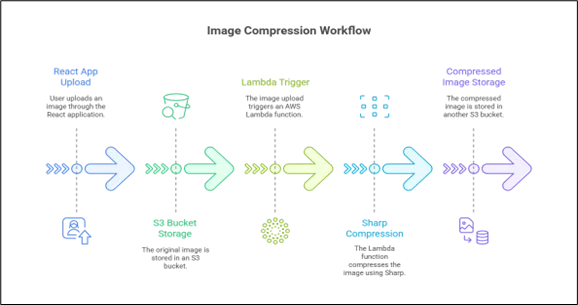
Below is a simple textual diagram illustrating the flow:
Step-by-Step Guide
Step 1: Setting Up the React App to Upload Images
Your React app uploads images to an Amazon S3 bucket using:
– Pre-signed URLs OR
– AWS Amplify Storage OR
– AWS SDK v3
A simple example using pre-signed URLs:
1. Request a pre-signed URL from your backend.
2. Upload the file directly to S3.
The React app does *not* handle compression — it simply uploads the raw image.
Step 2: Creating an Amazon S3 Bucket for Original Images
Create two buckets or two folders inside one bucket:
– /original — stores uncompressed uploads
– /compressed — stores optimized images
Configure your bucket with:
– Proper CORS policy
– Public/Private access rules
– Lifecycle policies (optional)
Step 3: Setting Up Amazon S3 Event Triggers
Go to Amazon S3 → Properties → Event Notifications
Configure:
– Event type: PUT
– Prefix: original/
– Destination: AWS Lambda Function
This ensures that every time an image is uploaded to original/, your AWS Lambda function is triggered.
Step 4: Creating the AWS Lambda Compression Function
AWS Lambda will:
1. Read the uploaded image from Amazon S3
2. Compress it using Sharp
3. Upload the optimized version back to Amazon S3
Example compression steps:
– Reduce file size
– Resize large images
– Convert PNG → JPEG or WebP
– Remove metadata (EXIF)
This is a fully automated backend pipeline.
Step 5: Writing the AWS Lambda Code Using Sharp
Sharp is a powerful Node.js library for image processing. Example operations:
sharp(buffer).resize(1200).webp({ quality: 70 })
The AWS Lambda function must include Sharp inside a deployment package or use Lambda Layers.
AWS Lambda Code Example:
|
1 2 3 4 5 6 7 8 9 10 11 12 13 14 15 16 17 18 19 20 21 22 23 |
const AWS = require("aws-sdk"); const S3 = new AWS.S3(); const sharp = require("sharp"); exports.handler = async (event) => { const bucket = event.Records[0].s3.bucket.name; const key = decodeURIComponent(event.Records[0].s3.object.key); const outputKey = key.replace("original/", "compressed/"); const image = await S3.getObject({ Bucket: bucket, Key: key }).promise(); const compressed = await sharp(image.Body) .resize({ width: 1200 }) .webp({ quality: 70 }) .toBuffer(); await S3.putObject({ Bucket: bucket, Key: outputKey, Body: compressed, ContentType: "image/webp" }).promise(); }; |
Step 6: Saving the Compressed Image Back to Amazon S3
After compression, the AWS Lambda function uploads the optimized file into /compressed.
You can then:
– Serve compressed images through Amazon CloudFront
– Display them in your React UI
– Save URLs in your database as needed
Step 7: Using the Optimized Image in React
Once compressed images are stored, your app can automatically reference:
– The /compressed version
– A CDN URL from Amazon CloudFront
– A fallback mechanism if a compressed image does not exist
This ensures your UI always loads lighter and faster images.
Cost Considerations
AWS Lambda + Amazon S3 is extremely cost‑effective:
– AWS Lambda free tier covers 1M requests per month
– Sharp operations run within 100–300ms
– Amazon S3 storage is cheap
Compared to traditional servers, serverless compression dramatically reduces operational overhead.
Scalability Benefits
This system is:
– Fully automated
– Scales infinitely
– Zero maintenance
– Integrates seamlessly with any frontend
Conclusion
Automating image compression with AWS Lambda and Amazon S3 triggers gives your React app a faster, cleaner, and more efficient workflow. By offloading compression to AWS, images are optimized instantly after upload, improving performance without adding extra work for developers or users. This setup keeps your app lightweight, cost-efficient, and ready to scale no matter how many images you handle.
Drop a query if you have any questions regarding Image Compression and we will get back to you quickly.
Empowering organizations to become ‘data driven’ enterprises with our Cloud experts.
- Reduced infrastructure costs
- Timely data-driven decisions
About CloudThat
FAQs
1. Why should I automate image compression instead of doing it manually?
ANS: – Manual compression is time-consuming and inconsistent. Automated compression ensures that every uploaded image is optimized without requiring developer effort, thereby improving performance and maintaining a standardized workflow.
2. Does image compression reduce the visual quality of images?
ANS: – Modern tools like Sharp offer lossless or high-quality lossy compression. Most users will not notice any visual difference, but the file size will decrease significantly.
3. Can I compress images directly inside my React app?
ANS: – While technically possible using browser-based libraries, it’s not recommended for production because:
- It increases CPU usage on the user’s device
- Compression performance varies across devices
- Server-side compression is more reliable and scalable


WRITTEN BY Shreya Shah
Shreya Shah is a Frontend Developer II at CloudThat, specializing in building scalable, user-focused web applications. She has a strong emphasis on creating clean, responsive interfaces with seamless integration to cloud-based solutions. Passionate about delivering smooth user experiences, Shreya continuously explores innovative ways to enhance efficiency, quality, and overall product performance.


 PREV
PREV












Comments