

 Login
Login

 September 24, 2026
|
Voiced by Amazon Polly |
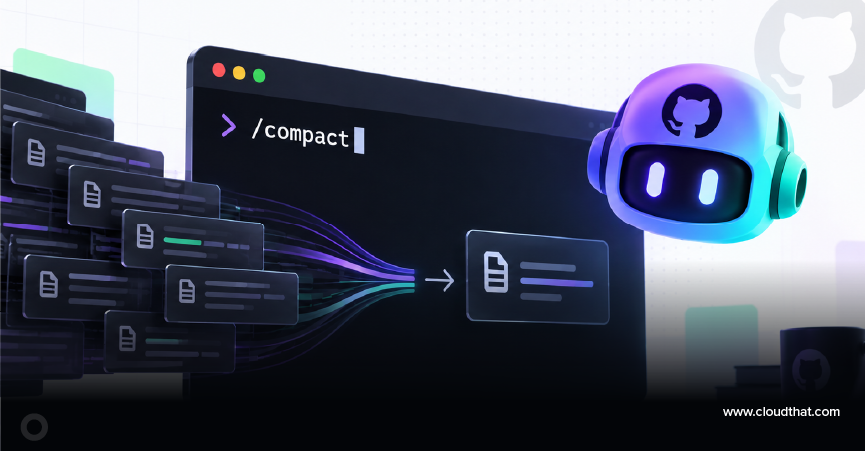
GitHub Copilot CLI’s /compact command manually compresses your conversation history into a structured summary, freeing up context space while keeping the thread of your work intact. This post walks through exactly what happens when you run it, how it compares to Copilot CLI’s automatic compaction and to /clear, and when each is the right call.
Start Learning In-Demand Tech Skills with Expert-Led Training
- Industry-Authorized Curriculum
- Expert-led Training
What does /compact do in GitHub Copilot CLI?
/compact is a slash command that manually triggers Copilot CLI to compress your current session into a summary, then swaps the old, token-heavy history for that summary while keeping your original instructions and any active plan. It’s the same process Copilot CLI already runs on its own in long sessions- /compact just lets you pick the moment.
When it runs, Copilot CLI does four things, in order:
- Takes a snapshot of the current conversation.
- Sends the full history to the model with a prompt asking for a structured summary that captures the goals of the session, what’s been done, key technical details, files touched, and planned next steps.
- Replaces the old history with that summary, along with your original instructions and the current state of any active plan or to-do list.
- Keeps anything you sent running in the background while compaction is still running.
You can steer what gets prioritized by adding a hint, like /compact focus on the auth discussion. If you trigger it by mistake, pressing Escape cancels a manual compaction while it’s still in progress.
When does Copilot CLI compact automatically, and how is that different from running /compact yourself?
According to GitHub’s own documentation, Copilot CLI starts compacting in the background automatically once a session reaches roughly 80% of the context window’s capacity, leaving about a 20% buffer so tool calls can keep running while it works. If usage climbs to around 95% before the automatic pass finishes, the CLI pauses briefly to allow compaction to complete, then continues.
So the practical difference isn’t what happens, it’s when. Automatic compaction is reactive: it kicks in once you’re already close to the limit. Running /compact yourself lets you compact proactively, on your own schedule, right before you start a new phase of a multi-step task, instead of mid-task when Copilot is in the middle of something.
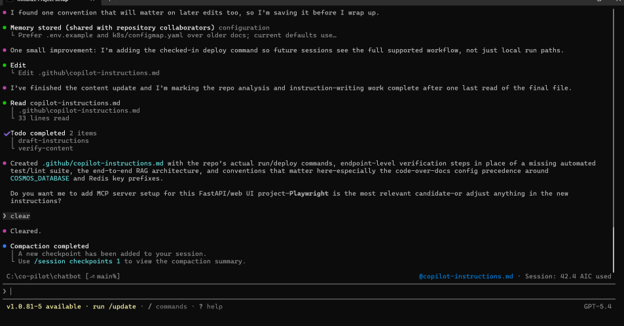
Fig 1: Automatic vs manual context compaction in GitHub Copilot CLI.
What’s the difference between /compact and /clear?
/compact summarizes and compresses, it keeps the discussion thread alive while shrinking its footprint. /clear wipes the session completely: no summary, no continuity, just a blank slate.
Use /compact when you’re continuing work on the same task and want to keep going without re-explaining the context you already gave Copilot. Use /clear when you’re switching to something entirely unrelated, and a clean slate is genuinely what you want, for example, moving from a feature branch to an unrelated bug fix.
What does /compact not preserve, and can you undo it?
Compaction is summarization, not lossless storage. Fine-grained detail, the exact wording of an earlier message, the full raw output of a command you ran, a small decision made twenty turns back, may not survive into the compressed version. And once compaction finishes, it can’t be reversed.
It’s worth understanding what the alternative looks like. GitHub’s documentation notes that, without compaction, once the context window filled up, Copilot CLI would have to fall back to simply dropping old messages from the history, removing them outright, with no summary and no way to know what was lost. Compaction exists to avoid that: it’s a more graceful way of running out of room than silent deletion.
That’s also the reason the /compact <hint> option exists. If a specific thread of the conversation matters more than the rest, say, a decision made about your auth flow twenty messages ago, say so before you compact, not after. Once it’s done, there’s no getting the original wording back.
What other Copilot CLI commands work alongside /compact?
Three commands round out how Copilot CLI manages context:
- /context shows exactly how your context window is being spent, token counts and percentages across the system prompt, custom instructions, tool definitions, your messages, and remaining free space. It’s the diagnostic step for deciding whether it’s actually time to compact.
- /session checkpoints lists every saved compaction summary by number and title, so you can look back at what happened during an earlier phase of a long session. Adding a number, for example, viewing checkpoint 2, opens the full saved content of that one.
- /resume lets you pick up a previous session with its checkpoints intact, rather than starting from zero.
Every compaction, automatic or manual, creates one of these checkpoints. You don’t have to manage them yourself; they’re there if a session ever needs debugging or a second look.
What does this look like in a real Copilot CLI session?
Picture a multi-phase task: scaffolding a new feature, implementing it, writing tests, then opening a pull request. That’s exactly the kind of work GitHub’s documentation identifies as a good fit for a long-running session, because each phase builds on decisions made in the previous one.
Here’s where /compact earns its place. After scaffolding is done and reviewed, the conversation already holds a lot of exploratory back-and-forth, file reads, false starts, and clarifying questions, which aren’t needed once implementation begins. Running /compact focuses on the scaffolding decisions we settled on right before moving into implementation, keeping the decisions that matter and clearing out the rest, so Copilot starts the next phase with a lean, relevant context instead of everything that led up to it. Skip that step, and the same cleanup happens automatically anyway once you cross the 80% mark, just later, and on Copilot’s timeline instead of yours.
Start proactively, not reactively
Don’t wait for the 80% mark to sneak up on you mid-task. In your next long Copilot CLI session, run /context once you’re a few phases into the work. If it shows you’re getting close to the limit, run /compact focus on <the part that matters most> before you move into the next phase, not in the middle of it. That’s the entire difference between compaction working for you and compaction just happening to you.
Upskill Your Teams with Enterprise-Ready Tech Training Programs
- Team-wide Customizable Programs
- Measurable Business Outcomes
About CloudThat
FAQs
1. Does GitHub Copilot CLI have a limit on how long a session can run?
ANS: – Not in practice. Copilot CLI automatically compacts the conversation once it nears the context window’s capacity, so sessions can continue indefinitely. The context window itself has a fixed token size that varies by model, but compaction is what keeps a long session usable well past that point.
2. Can I undo a /compact command in GitHub Copilot CLI?
ANS: – No. Once compaction completes, it can’t be reversed. You can press Escape to cancel a manual compaction while it’s still in progress, but after it finishes, the original message history is gone, and only the summary remains.
3. What happens if Copilot CLI never compacts a long session?
ANS: – Without compaction, once the context window filled up, Copilot CLI would have to drop old messages outright, with no summary and no way to recover what was in them. Compaction exists specifically to avoid that abrupt, unrecoverable loss of context.
4. How do I see what happened before an earlier compaction in Copilot CLI?
ANS: – Run /session checkpoints to list every checkpoint by number and title, then run /session checkpoints followed by that number to view the full saved summary from that point in the session.
5. Is /compact the same as /clear in GitHub Copilot CLI?
ANS: – /compact is not the same as /clear. /compact keeps a compressed summary of the conversation so you can continue the same task. /clear deletes everything with no summary, giving you a completely fresh session.


WRITTEN BY MD Azhar Uddin
Azhar is a Microsoft Certified Trainer (MCT) and multicloud expert with a Master’s degree in computer applications. With a proven track record of training over 10,000 professionals worldwide, he specializes in cloud, DevOps, and system administration- emphasizing scalable, secure and cost-effective solutions. He brings deep expertise in Azure, AWS and Oracle Cloud, skillfully integrating complex multicloud environments and designing modern cloud-native architectures using microservices and containers. Recognized among the Top 100 MCTs globally acclaimed for delivering real-world, high-impact training in Microsoft Data & AI and cloud technologies.


 PREV
PREV








Comments