

 Login
Login


 September 7, 2026
|
Voiced by Amazon Polly |
Overview
AI workloads such as LLM inference, document similarity, classification, speech recognition, image processing, and text generation increasingly depend on GPUs. The challenge is that GPUs are expensive, scarce, and often underutilized. A workload may reserve an entire A100 or H100 even when it uses only a fraction of the available compute and memory.
Kubernetes provides a way to manage GPU workloads centrally and use available GPU capacity more efficiently through NVIDIA GPU Operator, GPU scheduling, MIG, and Time-Slicing.
This guide explains how to configure this progressively.
Pioneers in Cloud Consulting & Migration Services
- Reduced infrastructural costs
- Accelerated application deployment
Understand the Target Architecture
The basic flow is:
GPU Node → NVIDIA Driver/Runtime → NVIDIA GPU Operator → Device Plugin → Kubernetes Scheduler → AI Workload
Kubernetes manages workloads, while NVIDIA components expose GPU resources to Kubernetes. The GPU Operator automates the installation and management of components such as drivers, the Container Toolkit, the Device Plugin, and GPU Feature Discovery.
Before implementing GPU sharing, first understand the workload:
- How much GPU memory does it require?
- How much GPU compute does it normally consume?
- Is it latency-sensitive?
- Is traffic steady or bursty?
- Does it require isolation from other workloads?
This determines whether the workload should use a full GPU, MIG, or Time-Slicing.
Install the NVIDIA GPU Operator
The first step is to make the GPU available to Kubernetes.
For a typical Kubernetes environment, install the NVIDIA GPU Operator using Helm:
|
1 2 3 4 5 6 7 |
helm repo add nvidia https://helm.ngc.nvidia.com/nvidia helm repo update helm install --wait --generate-name \ -n gpu-operator \ --create-namespace \ nvidia/gpu-operator |
The GPU Operator supports Kubernetes environments across cloud, bare-metal, VM, and vGPU deployments, with common container runtimes such as containerd, Docker, and CRI-O.
Validate the installation
Check the GPU node:
|
1 |
kubectl describe node <gpu-node-name> |
The node should expose NVIDIA GPU resources under its capacity/allocatable resources. Kubernetes cannot schedule GPU workloads until the GPU is successfully advertised to the cluster.
Verify GPU Discovery and Scheduling
Two important components help Kubernetes understand the available hardware:
- NVIDIA Device Plugin – advertises GPU resources to Kubernetes.
- GPU Feature Discovery (GFD) – adds labels describing GPU hardware and capabilities.
Once this is working, a workload can request a GPU.
Example:
|
1 2 3 4 5 6 7 8 9 10 11 12 13 14 15 16 17 18 19 20 |
apiVersion: apps/v1 kind: Deployment metadata: name: text-classifier spec: replicas: 1 selector: matchLabels: app: text-classifier template: metadata: labels: app: text-classifier spec: containers: - name: classifier-api image: example/text-classifier:1.0 resources: limits: nvidia.com/gpu: 1 |
If multiple GPU models are available, use node labels and nodeSelector to assign workloads to the correct hardware.
For example:
|
1 2 |
nodeSelector: nvidia.com/gpu.product: "A100-PCIE-40GB" |
Keep GPU Nodes Dedicated
GPU nodes are expensive, so CPU-only workloads should not accidentally consume their resources.
Taint GPU nodes:
|
1 2 |
kubectl taint nodes <gpu-node-name> \ nvidia.com/gpu=present:NoSchedule |
GPU workloads can then use the corresponding toleration:
|
1 2 3 4 5 |
tolerations: - key: "nvidia.com/gpu" operator: "Equal" value: "present" effect: "NoSchedule" |
This ensures GPU nodes are primarily used by workloads that explicitly require GPU resources.
Control GPU Consumption with ResourceQuota
In a shared Kubernetes cluster, one team should not consume all available GPU capacity.
Create a namespace-level quota:
|
1 2 3 4 5 6 7 8 |
apiVersion: v1 kind: ResourceQuota metadata: name: team-gpu-quota namespace: ml-platform spec: hard: requests.nvidia.com/gpu: "4" |
This limits the namespace to four requested GPUs and provides a basic mechanism for controlling resource consumption across teams.
Choose How to Share a GPU
By default, Kubernetes treats a GPU as an indivisible resource. If a workload needs only part of a GPU, there are two important approaches:
MIG (Multi-Instance GPU) and Time-Slicing.
Option A: MIG — Recommended for Predictable Production Workloads
MIG physically partitions a supported GPU into multiple isolated GPU Instances. Each instance receives a defined amount of GPU memory and compute resources.
For example, an A100 40GB can be configured with profiles such as:
- 5gb
- 10gb
- 20gb
- 20gb
- 40gb — full GPU
An A100 has eight 5GB memory slices and seven compute slices, allowing up to seven GPU Instances.
Configure MIG
First, enable MIG management in the GPU Operator, then apply the desired configuration:
|
1 2 |
kubectl label nodes <gpu-node-name> \ nvidia.com/mig.config=all-1g.5gb |
The GPU Operator’s MIG Manager applies the configuration and exposes the resulting partitions to Kubernetes.
Important: Plan the layout carefully. Creating many small instances first can prevent a larger instance from being created later, due to how GPU slices are arranged. For mixed workloads, plan the larger partitions first.
MIG is best suited for production workloads where memory isolation, compute isolation, predictable performance, and workload isolation are important.
Option B: Time-Slicing — Recommended for Lightweight/Bursty Workloads
Time-Slicing does not physically partition the GPU. Multiple workloads take turns using the same GPU compute resources.
A basic configuration can advertise four shared GPU replicas per physical GPU:
|
1 2 3 4 5 6 7 8 9 10 11 12 13 14 15 |
apiVersion: v1 kind: ConfigMap metadata: name: nvidia-time-slicing-config namespace: kube-system data: slice-4: |- version: v1 sharing: timeSlicing: renameByDefault: true failRequestsGreaterThanOne: true resources: - name: nvidia.com/gpu replicas: 4 |
For example, four physical GPUs, each with four replicas, can appear to Kubernetes as 16 shared GPU resources.
Time-Slicing is useful for development, experiments, internal tools, and lightweight or bursty inference workloads.
However, it does not provide the same compute or memory isolation as MIG, and latency can become unpredictable when workloads compete for the GPU.
MIG vs Time-Slicing: Quick Decision
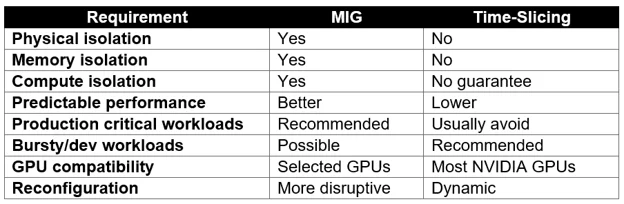
The decision should be based on workload latency, reliability, memory, isolation, and security requirements, rather than simply maximizing the number of GPU shares.
Optimize the Model Before Adding More GPUs
GPU sharing should not be the only optimization strategy.
Consider:
FP16: Can significantly reduce VRAM consumption compared with FP32 and improve performance on supported hardware.
Flash Attention / Attention Optimization: Reduces the memory overhead associated with transformer attention, particularly for long-context workloads.
Speculative Decoding: Uses a smaller draft model to help a larger model generate tokens more efficiently.
Distillation: Trains a smaller student model using a larger teacher model, potentially reducing inference cost at the expense of some accuracy or capability.
Always benchmark these changes against representative workloads before moving them into production.
Monitor Before and After Sharing
GPU utilization alone is not enough to determine whether the platform is efficient.
Monitor:
- GPU compute utilization
- GPU memory utilization
- p50/p95/p99 inference latency
- Request throughput
- Batch size
- Pod restarts and OOM events
- Pending GPU workloads
- GPU allocation by team, namespace, model, and environment
These metrics help determine whether a workload needs a larger MIG partition, a dedicated GPU, different Time-Slicing settings, or model optimization.
Recommended Implementation Approach
For our Kubernetes GPU platform, the recommended rollout is:
- Install NVIDIA GPU Operator.
- Verify GPU discovery and allocatable resources.
- Taint and label GPU nodes.
- Deploy workloads using explicit GPU requests.
- Apply namespace-level GPU quotas.
- Establish a baseline using full GPUs.
- Measure GPU memory, utilization, latency, and throughput.
- Move small, predictable production workloads to MIG.
- Use Time-Slicing for suitable development, bursty, or lower-priority workloads.
- Optimize models using FP16, attention optimization, speculative decoding, or distillation where applicable.
- Continuously monitor and adjust GPU allocation as workloads and traffic change.
The goal is not simply to add more GPUs. The goal is to build a shared GPU platform that uses existing accelerator capacity efficiently while maintaining the performance and isolation required by each workload.
Making IT Networks Enterprise-ready – Cloud Management Services
- Accelerated cloud migration
- End-to-end view of the cloud environment
About CloudThat
FAQs
1. Should we use MIG or Time-Slicing?
ANS: – Use MIG when workloads require predictable performance, memory/compute isolation, or are production-critical. Use Time-Slicing for lightweight, bursty, development, or lower-priority workloads where strict isolation is not required.
2. Do we always need more GPUs when utilization is high?
ANS: – Not necessarily. First, check GPU memory, compute utilization, latency, batching, and workload efficiency. Techniques such as FP16, Flash Attention, speculative decoding, and model distillation may reduce GPU requirements before adding more hardware.


WRITTEN BY Pranav Borude
Pranav is a DevOps professional with over 2 years of experience in AWS Cloud, container orchestration, GitOps, DevSecOps, and monitoring. Specialized in automating the full software development lifecycle (SDLC) with expertise in analysis, design, coding (Python), testing, troubleshooting, and ensuring operational stability. Proficient in version control, documentation, and cloud technologies, she is dedicated to delivering secure, high-quality solutions in dynamic environments.


 PREV
PREV






Comments