

 Login
Login


 December 5, 2025
|
Voiced by Amazon Polly |
Introduction
Docker has become an essential tool for packaging, running, and distributing applications. While creating images and pushing them to a registry is common practice, enabling Docker Content Trust (DCT) adds an important layer of security. This blog walks you through building a Docker image, specifically a WordPress setup, configuring the environment, and pushing the image to a registry with Content Trust enabled.
When working with containerized environments, ensuring that the images you build and deploy are verified and secure is critical. Docker Content Trust provides a mechanism for signing and validating the integrity of Docker images before they are pulled or executed.
In this guide, you’ll learn how to:
- Set up Docker on an Ubuntu VM
- Build a custom WordPress Docker image
- Create and run containers for WordPress and MySQL
- Tag and push these images to a secure registry using Content Trust
This step-by-step approach is suitable for developers, DevOps engineers, and cloud practitioners who want to enhance container security while maintaining a smooth deployment workflow.
Pioneers in Cloud Consulting & Migration Services
- Reduced infrastructural costs
- Accelerated application deployment
Docker Image
A Docker image is a lightweight, executable package that contains everything needed to run an application, code, libraries, dependencies, environment settings, and runtime. It acts as a blueprint for creating Docker containers.
Docker images are:
- Immutable (once built, they don’t change)
- Portable across environments
- Version-controlled using tags
- Stored in registries like Docker Hub, GCR, or ECR
What Is Docker Content Trust?
Docker Content Trust (DCT) ensures that the images you use are cryptographically signed. This prevents unverified or tampered images from being pulled or run in your environment.
Why Content Trust Matters
- Ensures authenticity of images
- Protects against malicious alterations
- Allows organizations to enforce security policies
- Provides traceability for image versions
When DCT is enabled, Docker will only interact with images that are signed. Any unsigned or modified image will be rejected.
Step-by-Step Guide
Step 1: Create a VM with Ubuntu and SSH into it
Update VM
|
1 |
#sudo apt-get update |
Let apt access a repository over HTTPS
|
1 |
#sudo apt-get install apt-transport-https ca-certificates curl gnupg-agent software-properties-common -y |
Add Docker’s GPG key
|
1 |
#curl -fsSL https://download.docker.com/linux/ubuntu/gpg | sudo apt-key add - |

Add the Docker’s repository
|
1 |
#sudo add-apt-repository "deb [arch=amd64] https://download.docker.com/linux/ubuntu $(lsb_release -cs) stable" |

Update Docker’s repository
|
1 |
#sudo apt-get update |
Install docker
|
1 |
#sudo apt install docker-ce -y |
Add the user to the Docker
|
1 |
#sudo usermod -aG docker $USER |

Note: Exit and SSH again
|
1 |
#docker –version |
Step 2: Curl wordpress into local
|
1 |
#curl -LO https://wordpress.org/latest.zip |

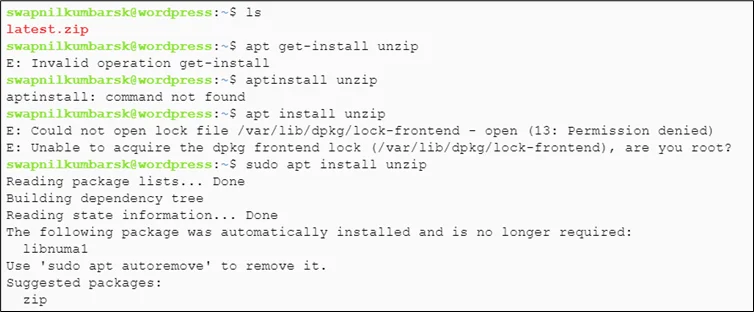
Install unzip
|
1 |
#sudo apt install unzip |
Unzip latest.zip
|
1 |
#unzip latest.zip |

|
1 2 3 4 5 6 7 8 9 10 11 12 13 14 15 16 17 18 19 20 21 22 23 |
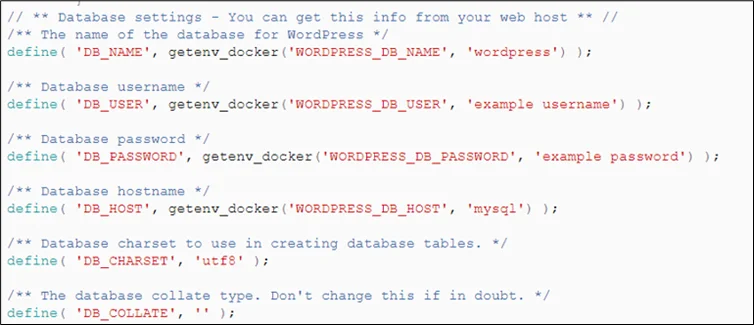
Move wp-config-sample to wp-config #mv wp-config-sample.php wp-config.php Enter the wp-config file #vi wp-config.php Add the code #if(!function_exists('getenv_docker')){ function getenv_docker($env, $default) { if ($fileEnv = getenv($env . '_FILE')) { return rtrim(file_get_contents($fileEnv), "\r\n"); } else if (($val = getenv($env)) !== false) { return $val; } else { return $default; } } } Enter the following code in the variable section #define( 'DB_NAME', getenv_docker('WORDPRESS_DB_NAME', 'wordpress') ); #define( 'DB_USER', getenv_docker('WORDPRESS_DB_USER', 'example username') ); #define( 'DB_PASSWORD', getenv_docker('WORDPRESS_DB_PASSWORD', 'example password') ); #define( 'DB_HOST', getenv_docker('WORDPRESS_DB_HOST', 'mysql') ); |
Create a Dockerfile and paste the content
|
1 2 3 4 5 6 7 8 9 10 11 12 13 14 15 16 17 18 19 20 21 22 23 24 |
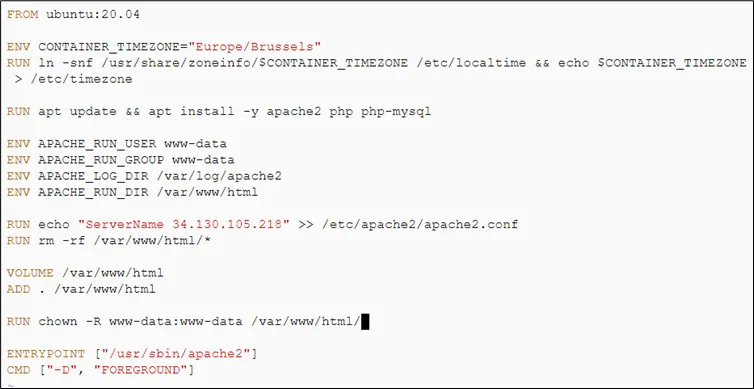
#cd wordpress #vi Dockerfile FROM ubuntu:20.04 ENV CONTAINER_TIMEZONE="Europe/Brussels" RUN ln -snf /usr/share/zoneinfo/$CONTAINER_TIMEZONE /etc/localtime && echo $CONTAINER_TIMEZONE > /etc/timezone RUN apt update && apt install -y apache2 php php-mysql ENV APACHE_RUN_USER www-data ENV APACHE_RUN_GROUP www-data ENV APACHE_LOG_DIR /var/log/apache2 ENV APACHE_RUN_DIR /var/www/html RUN echo "ServerName 34.130.105.218" >> /etc/apache2/apache2.conf RUN rm -rf /var/www/html/* VOLUME /var/www/html ADD . /var/www/html RUN chown -R www-data:www-data /var/www/html/* ENTRYPOINT ["/usr/sbin/apache2"] CMD ["-D", "FOREGROUND"] |
Step 3: Build the Docker file
|
1 2 3 4 |
#docker build -t wordpress-main2 . Pull mysql #docker pull mysql |

Create container out of image and create variable
|
1 2 3 4 5 6 7 8 9 |
# docker run --name docker-mysql \ -e MYSQL_ROOT_PASSWORD=secret \ -e MYSQL_DATABASE=wordpress_db \ -e MYSQL_USER=wordpress \ -e MYSQL_PASSWORD=secret -d mysql:latest |

Pass the docker-wordpress-local to port 8080, create a network, and attack both WordPress and MySQL
|
1 2 3 4 5 6 7 8 |
# docker run --name wordpress-test3 -dp 8080:80 \ -e WORDPRESS_DB_HOST=docker-mysql \ -e WORDPRESS_DB_NAME=wordpress_db \ -e WORDPRESS_DB_USER=root \ -e WORDPRESS_DB_PASSWORD=secret wordpress-main2 #docker network create --attachable wordpress-network #docker network connect wordpress-network docker-mysql #docker network connect wordpress-network wordpress-test3 |

Check volume created
|
1 |
#docker volume ls |

Inspect volume for mount point
|
1 |
#docker inspect volumename |
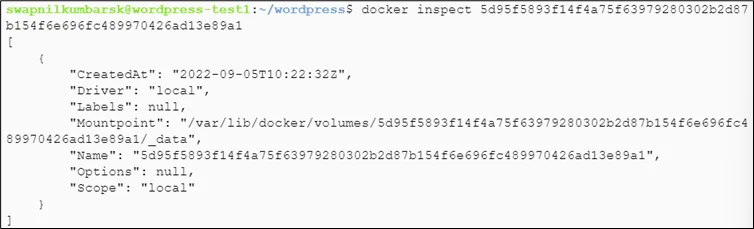
Check the content of the volume
|
1 |
#sudo ls mountpoint |

Check the running container
|
1 |
#docker ps |

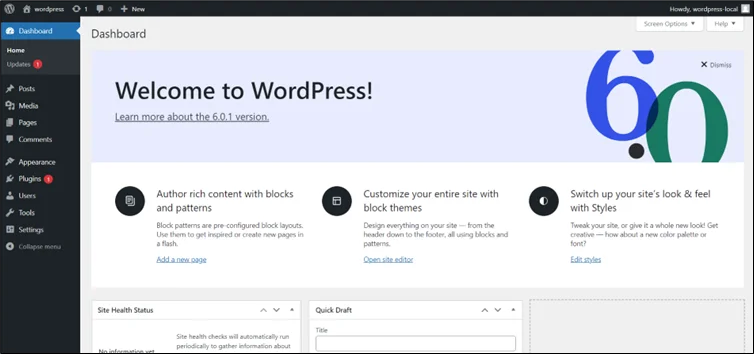
Step 4: Copy and paste the VM IP on port 8080 and enter the information directly, as we have entered the variables above
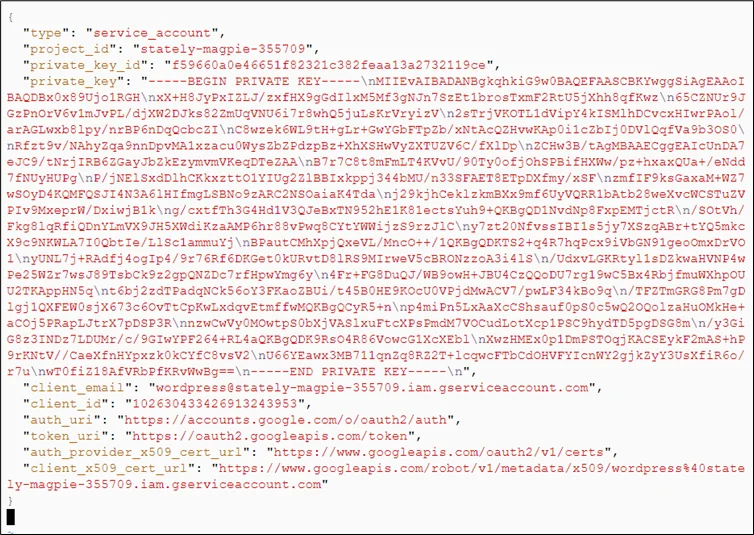
Copy the JSON keyfile from the service account, check with all the permissions
|
1 |
#vi keyfile.json |
Paste the content of the file downloaded and save it.
Step 5: Login with the service account
|
1 |
# cat keyfile.json | docker login -u _json_key --password-stdin https://gcr.io |

|
1 2 3 |
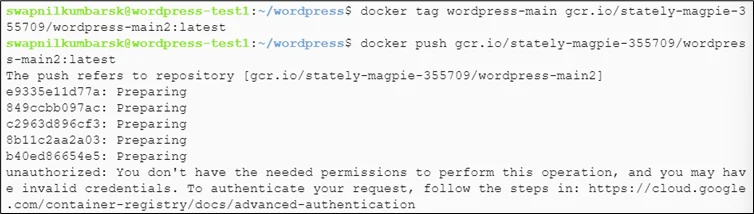
#docker tag wordpress-local gcr.io/stately-magpie-355709/wordpress-main2:latest #docker images #docker push gcr.io/stately-magpie-355709/wordpress-main:latest |
|
1 |
#docker tag mysql gcr.io/stately-magpie-355709/mysql:latest |

|
1 |
#docker push gcr.io/stately-magpie-355709/mysql:latest |
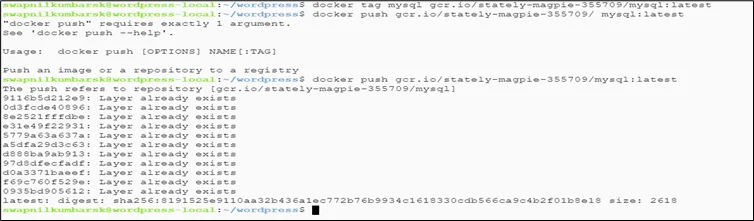
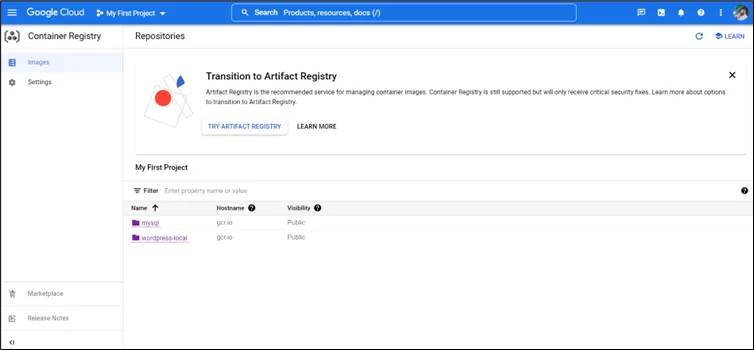
Refer for authentication to push: https://cloud.google.com/container-registry/docs/advanced-authentication
Conclusion
Securing your container workflow is just as important as building and running your applications. By integrating Docker Content Trust into your image-building pipeline, you ensure that every image pushed, pulled, or deployed is verified and trustworthy.
From setting up Docker, building custom WordPress images, configuring environments, and pushing images to a secure registry, you now have a complete understanding of how to maintain both functionality and security throughout your container lifecycle.
Drop a query if you have any questions regarding Docker Content Trust and we will get back to you quickly.
Making IT Networks Enterprise-ready – Cloud Management Services
- Accelerated cloud migration
- End-to-end view of the cloud environment
About CloudThat
FAQs
1. Is Docker Content Trust enabled by default?
ANS: – No. DCT must be manually enabled using the environment variable:
export DOCKER_CONTENT_TRUST=1.
2. Do all registries support Content Trust?
ANS: – Docker Hub supports DCT, but platforms like Google Container Registry (GCR) or AWS ECR may require additional steps or alternative signing mechanisms.
3. Can I push unsigned images when DCT is enabled?
ANS: – No. When Content Trust is enabled, Docker will block pushes and pulls of unsigned images unless the variable is turned off.


WRITTEN BY Swapnil Kumbar
Swapnil Kumbar is a Senior Research Associate at CloudThat with over 2.5 years of experience in DevOps. He specializes in AWS, Kubernetes, automation, and cloud-native technologies. Passionate about innovation and research, Swapnil focuses on building scalable infrastructure, optimizing deployments, and exploring emerging tools. In his free time, he actively contributes to knowledge sharing and community learning initiatives.


 PREV
PREV












Comments